Showing posts with label Load Testing. Show all posts

Wednesday, September 13, 2023

.Net Framework v/s .Net - One more performance comparison

Some of us might have heard why I should upgrade to .Net from legacy .Net Framework as it works and I want to run the application only on Windows servers. We as developers reply to them that .Net is modern and getting a lot of new features etc. Along with we emphasize that .Net is faster than .Net Framework. Should we use Linux to get that performance boost or will it be faster in Windows? There are a lot of comparisons¹ available on the net regarding the same. Here is one more comparison.

Application use case

This post is not to create a log of use cases and compare performance between the 2 frameworks. Rather this is comparing the encryption performance.
The application encrypts and decrypts data using X509Certificate. The use case tested may not be applicable in many projects but this is a solution to send data securely between the producers and one consumer. All the producers have the public key to encrypt and the consumer has the private key to decrypt.


This has projects that consume the shared code with minimal conditional compilations. Those are console apps and are ready to run with the required frameworks installed.

Please create an issue or give a PR if anyone finds problems in the test code.

Test environment

Model - HP EliteBook 840 G3
OS - Win 10 21H2 (OS Buid 19044.2194)
CPU - Intel i7-6600U @ 2.60Hz
RAM - 16GB
.Net Framework Version - 4.8(Runtime v4.0.30319)
.Net Version - .Net 6 (6.0.16)

Results

The .Net performs twice the speed of the .Net Framework. The picture is worth 1,000 words

The results were taken from an average of 3 attempts.

References


Tuesday, June 2, 2020

Azure @ Enterprise - Experiments with the smallest possible VM B1ls- Part 1 - Installing UI and Remote desktop

Experiments with the smallest possible VM Bl1s series
  1. Installing UI and Remote Desktop
  2. Installing web server
  3. Installing proxy

Introduction

Though cloud providers come up with abstracted PaaS solutions, the IaaS will be there for a while. The main problem with virtual machines is their cost. If we want to host a web site, it is very cheap to use PaaS option. Even in Azure, there is a free tier for Azure App Service also a freemium option in Azure Functions. AWS had a very low-cost VM from the earlier. But Azure added a similar one named B1ls last year only in the burstable B series. 
This is a series of posts on experimenting with that machine. It has only1 vCPU and 512MiB RAM. There are some other attempts with B1ls series on the internet which are interesting ones even to deploy docker swarm cluster.

Azure v/s AWS low-cost VMs

Below is a simple comparison of Azure v/s AWS in this low-cost burstable VMs scenario.

 Criteria Azure B1ls AWS T3.nano and T3a.nano  Comments
 Cost$.0052/h $.0047/h for T3a.nano
 CPU1 vCPU2 vCPU (up to 2.5 GHz) Hz of Azure to be filled
 Memory512 MiB .5 GiB 
Storage 4 GiB SSD  TBD 

Remote desktop

This experiment is to follow the Azure documentation to install a desktop environment into B1ls and try whether we can remote into. SSH works great.

The article followed is here. It uses xfce4 desktop environment which seems the lightweight option possible. Then xrdp to expose the remote desktop service.

After struggles, finally, I was able to get something thought not the full remote desktop. The screenshot is below.

Issued faced

Issue 1 - Not able to get lock to install

Error message
testadmin@PrimaryVM:~$ sudo apt-get -y install xfce4
E: Could not get lock /var/lib/dpkg/lock-frontend - open (11: Resource temporarily unavailable)
E: Unable to acquire the dpkg frontend lock (/var/lib/dpkg/lock-frontend), is another process using it?
testadmin@PrimaryVM:~$ sudo apt-get -y install xfce4
E: Could not get lock /var/lib/dpkg/lock-frontend - open (11: Resource temporarily unavailable)
E: Unable to acquire the dpkg frontend lock (/var/lib/dpkg/lock-frontend), is an other process using it?


Troubleshooting
Followed all most all the techniques mentioned in this tutorial. Fortunately I was able to get it installed.

Issue 2 - Slowness

The installation was very slow. Finally, I had to take a workaround in the experiment by scaling up for the installation and scaling down to B1ls to do remote desktop.

Tuesday, June 25, 2019

Network capacity planning - Poor developer's tool

Background

We are about to perform load testing of a our application using a load testing tool say Visual Studio Team System or load runner. Before we initiate we need to plan the network capacity needed for full load. If the load testing environment is in a locked room air gaped with rest of network, this is not an big impact. But it is good to know, if we are running load test in same enterprise network with users and especially running the during the peak business hours. It looks wired but some people actually does this way.

Lets assume our application is simple web based single page application with some web apis. Both hosted in same web server(s)

Aim

Find out the total network payload between 2 machines/IPs for a specified time interval. This can be used to measure traffic to the application when load test scenarios are executed.

In this post, we are taking http://joymononline.in as the application to test

Tools

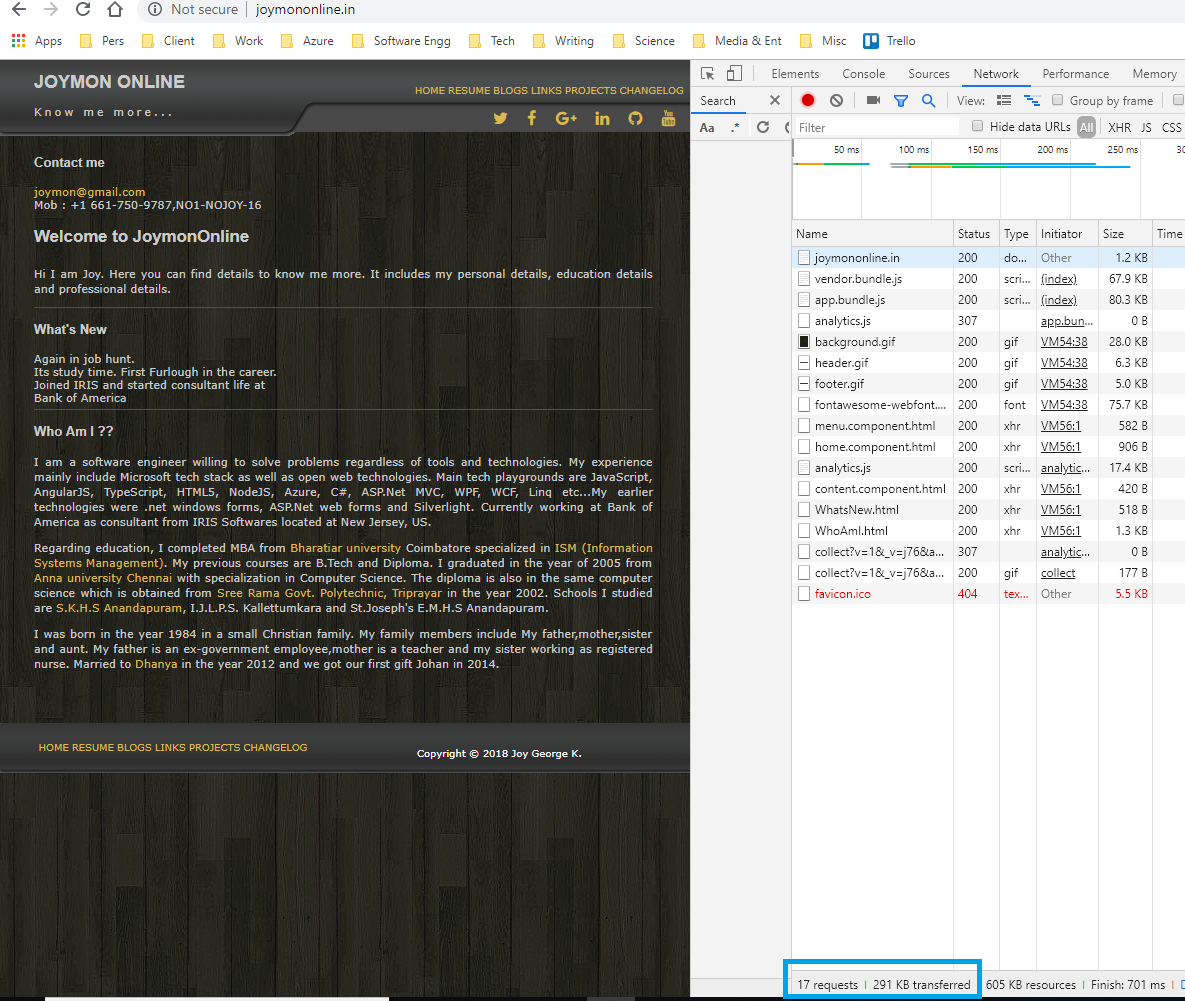
There are lot of tools. F12 can be seen as one. But F12 is not enough as it capture the http traffic. Other than http data, there are lot of handshaking and all happening to establish connection. 

Apart from http data size 291KB what is shown in above screenshot, we need to find out actual traffic.
Lets see how this can be done using Wireshark. 

How to measure using Wireshark

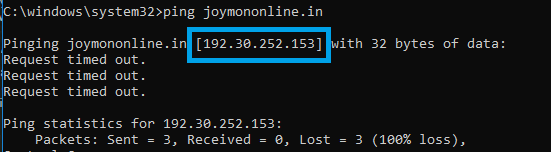
First we need to find out the IP of the application. In this scenario we can taking http://joymononline.in as the application to load test

Finding the destination IP address

Simple if the target server supports ping. Below is a screenshot which does the same

Wireshark statistics

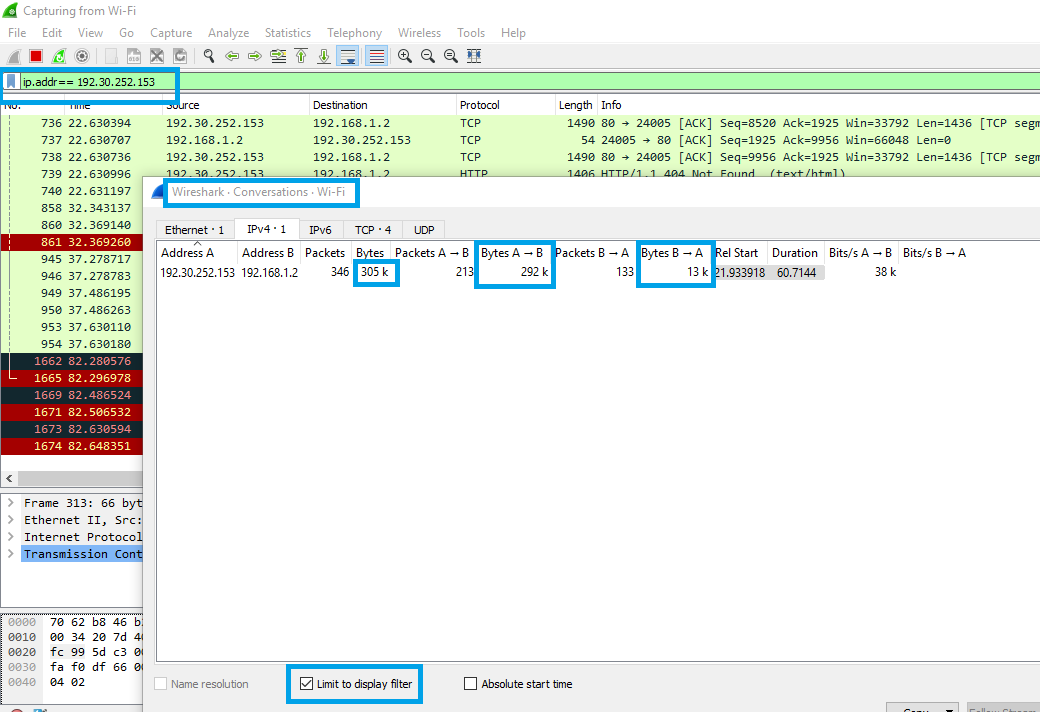
Wireshark has Statistics menu, that can show the conversations happened between 2 IPs. 

Below are the steps

  1. Run Wireshark. Make sure selecting the right network adapter. In this case its from Laptop with home broadband connected via WiFi.
  2. Filter the traffic by entering proper filter
  3. Do the operations. In this case just opened http://joymononline.in in browser
  4. Pause Wireshark
  5. Open Statistics->Conversations
  6. Check the "Limit to display filter" checkbox at the bottom left.
  7. Select IPv4.1 tab. (It really depend on the scenario what needs to be captured)
The Bytes shows total bytes transferred. in this case 305k the Bytes A->B and Bytes B->A shows the directional communications.

Measure traffic in load test scenario

In the real scenario to measure the traffic, the full scenarios / use cases of load test can be executed with single user once the Wireshark runs. If there are load generating agents, the Wireshark has to run there to capture traffic.

Interesting

Tuesday, May 14, 2019

Hard drive shows full but size not reflected in the folder properties

Recently, we were doing load testing of an enterprise application. We use VisualStudio load testing project now known as Azure DevOps with 4 agents having 16 cores, 64GB each. Due to some enterprise restrictions we are not able to use the VSO / DevOps hosted agents instead we have to use 'bring your own agent' method. It was fine when we were below 3000 virtual users limit. But when we targeted 5000 users, we ended up in load test agent issues than the application.

One of the issues was a failure in load test run saying there was not enough hard disk space. When I went into the machine using my login, I could see the "This PC" page shows the c:\ drive is full. But when I select all folders inside c:\ and check the properties, it doesn't shows the same disk usage!!!

Which folder is filled up? Any magic going on here?

It was interesting as the properties shows low usage where drive shows full even I am admin in the load agent machine.

Fortunately, we have Microsoft support and they were in the meeting. They pointed out to windirstat tool which shows where the files and who use the space in reality.

It was the temp folder of the user who runs the VSTS load test agent service. The location is below which is filled by the load test runs.

C:\Users\<user who runs the VSTS load test service>\AppData\Local\Temp\

It seems many people faced the same drive and folder size mismatch in different scenarios. Some experiences are here and here.

Tuesday, April 9, 2019

Visual Studio Online / Azure DevOps load testing - On-premise agent service is not starting

This is a simple troubleshooting post related to VisualStudio Online or Azure DevOps load testing.
The load testing needs agent programs to be installed on multiple machines to generate load. We can use agents provided by Microsoft as well if our application is straight forward and accessible from Microsoft hosted agents.

If we are in Enterprise or in restricted environments, we may have application hosted internally and only accessible via domain joined machines or via other constraints. Then we need to run the agent program on premise.

Problem

The agent program is a windows services which we can see in services.msc console. Sometimes the agent service gets stopped and below error will show up when we try to restart.

---------------------------
Services
---------------------------
The VSTSLoadAgentService service on Local Computer started and then stopped. Some services stop automatically if they are not in use by other services or programs.
---------------------------
OK 
---------------------------

Solution

Since this Azure DevOps load testing tool is deprecated now and ending its life next year around this time, lets not go into the details why its not working. Lets see a hack.

As standard Microsoft solution which is as famous as machine restart, lets uninstall and install the agent program again and it will work.

Since the installation is by running below PowerShell scripts, it doesn't seems polluting registry and all.

Uninstalling agent

Uninstall command needs the agent name. If the name if unknown, first we need to get agents list. Example is as follows.

.ManageVSTSCloudLoadAgent.ps1 -TeamServicesAccountName https://<organization>.visualstudio.com -PATToken <PATToken> -AgentGroupName <group name> -GetAgents

to uninstall an agent follow the below command.

.ManageVSTSCloudLoadAgent.ps1 -TeamServicesAccountName https://<organization>.visualstudio.com -PATToken <PATToken> -DeleteAgent -AgentGroupName <group name> -AgentName <agent name>

Now install the agent again.

.ManageVSTSCloudLoadAgent.ps1 -TeamServicesAccountName https://<organization>.visualstudio.com -PATToken <PATToken> -ConfigureAgent -AgentGroupName <group name>

The ManageVSTSCloudLoadAgent.ps1 file can be downloaded from this location. The commands above has some parameters enclosed in '<' & '>' as placeholders. We need to use actual values there.

Tuesday, March 19, 2019

Azure @ Enterprise - Downloading all the VSOnline / Azure DevOps load test .har files together

Background

After performing a load test via Azure Test Plans or Visual Studio Online, it produce the http archive  files with .har extension. Those .har files are available in the Azure DevOps portal as part of test results and we can download to analyze the nature of load test. But the problem is that we need to download files one by one. Its tedious to do via portal.

Solution

As everyone knows, the Azure is built around ReSTful Web APIs. The Portal UI itself is a wrapper around those APIs. Lets see how can we download those files easily using the same API layer.

Figuring out Url

Below Url gives the details of WebAPI which we can invoke to interact with the load tests.


In short, the url format is below
https://<organization name>.vsclt.visualstudio.com/_apis/clt/testRuns/<Run GUID>/results?api-version=5.0

The GUID of test run can be obtained from the portal URL, when we are in the individual test run page. If we try with the integer sequence number what we are seeing the test runs list, it will not work.

Security

The MSDN documentation says Personal Access Token and type Basic.  That means, when we put the PAT, we have to use base64 encoding. The best way to make sure its working, is via Postman. Below are the steps.
  • In Postman, make sure the http method is GET and enter the intended URL by replacing the organization name and Run GUID.
  • Go to Authorization tab and select TYPE as "Basic Auth".
  • Enter any user name or leave it empty and inside the password text box, put the Personal Access Token.
  • Press on 'Send' buttong to send the API request to Azure DevOps, and we should get data in JSON format.

What is the role of storage account and how to access files

The WebAPI call /testRuns/<GUID>/results gives a JSON as explained above not the .har files which we need. Instead of .har files or har data, it has a link to Azure Blob Storage. Notice that the link has some query string which have the SAS token details. 

Azure developers already knows how to download files from an Azure blob storage, if they get a URL with SAS token suffixed to it.

But for the benefit of testers and automation guys the below link has been given which explains, how to download files from Azure blob storage using a tool called Azure Storage Explorer. It is free as of now.


Once the connection is established in Azure Storage Explorer to storage account using the SAS token, we can navigate to the correct GUID folder of test run. Then to /TestResult/Diagnostics folder to download .har files.

Another way is to use another command line tool called AzCopy.exehttps://docs.microsoft.com/en-us/azure/storage/common/storage-use-azcopy which download the files from Azure Storage Account in higher speeds. AzCopy.exe needs the SAS token to be passed into it via command line switches. Since that is not in the scope of this post, letting it to learners.

Tuesday, March 12, 2019

Azure DevOps formerly VSOnline load testing - The load test cannot be run since the number of URLs...

The Azure DevOps or old VS Online or Azure dev test labs is a nicer option to do load testing. They have hosted agents or we can bring our own agents. Agents means the distributed load generator machines.
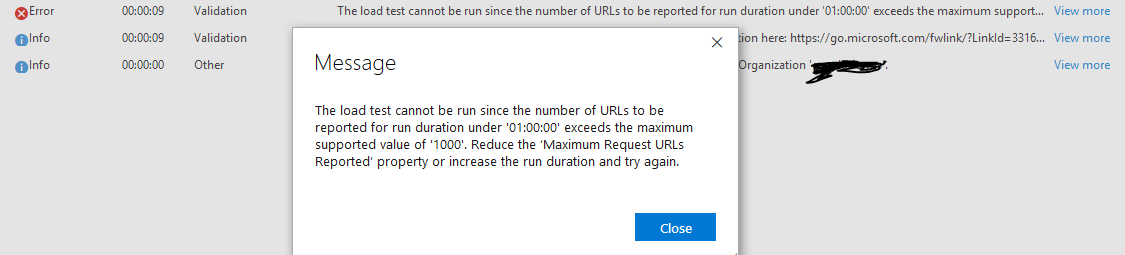
Below is one error message we may encounter when we load test enormous applications.

The load test cannot be run since the number of URLs to be reported for run duration under '01:00:00' exceeds the maximum supported value of '1000'. Reduce the ‘Maximum Request URLs Reported’ property or increase the run duration and try again.


The best way to fix is to follow what the error message says.

https://stackoverflow.com/questions/24250153/web-load-test-with-mvc-route-parameters-creates-many-instance-urls
https://social.msdn.microsoft.com/Forums/en-US/ffc16064-c6fc-4ef7-93b0-4decbd72167e/maximum-number-of-unique-web-test-requests-exceeded?forum=vstswebtest

Below is the URL to the error codes Azure DevOps / VS Online load test may produce. This is another way to tackle the issue.

https://devblogs.microsoft.com/devops/visual-studio-cloud-load-testing-error-codes/

If it didn't solve with above steps, try the old school techniques such as restarting Visual Studio instance which used to submit job to VSO, restart machine itself or resubmit multiple times.

It is really wired, but this is what it is.

Tuesday, July 16, 2013

Recording VSTS webtest of windows application which uses https web services

Whenever we develop a web site or web application, it is mandatory that we should do load testing before production. It will give us an idea about how many users and requests it can handle per second in a given server environment. In theory its easy to say we should do the load testing. But in practice, very less people knows, how it is being worked out and what are the software tools used to do load testing.

One of the load testing tool is Visual Studio itself ! But before going into load testing in Visual studio, let us see what a load testing software in general should provide and how a load testing is carried out.

Features of load testing software

  • Recording
    • Ability to record the different use cases of the application. Mainly uses script for storing purpose.
    • Ability to add parameters / tokens into the recorded use cases / script for handling virtual users and passing other runtime values.
  • Play back
    • Ability to run the recorded use cases / scripts by replacing the tokens with run time values
    • Ability to run simultaneously from multiple machines or agents.
    • Controller agent model to collect data from the nodes which are executing the scripts.
    • Ability to create virtual users in the controller agent environment.

Steps to do load testing

  1. Record the use cases in a format which can be playable
  2. Adding parameters (optional)
    1. Add tokens or place holders to the recorded script so that it can be replaced by actual values at run time
    2. Write the token / parameter replacement logic.
  3. Define web load test cases. eg: 25 virtual users
  4. Setup the agents.
  5. Run the recorded load test cases and collect the results.

Web performance load testing using Visual Studio

This feature is available in high end versions (Ultimate) of Visual Studio. If your Visual Studio supports load testing, you can see the webtest template and load test template. If your application is a web site its very easy to record the scripts. This is because the Visual Studio has an in built mechanism to record the http(s) traffic from internet explorer. If your internet explorer is in record mode, you can easily perform use cases and record the action. But if you are developing a windows application which uses http(s), it is little difficult to record because Visual Studio cannot intercept your windows desktop application to capture the http(s) traffic. So what to do? In fact that is the aim of this post.

Recording visual studio web test in desktop world

There is a really really useful tool called fiddler. It must be familiar to the web developers but not for windows developers. This tool can act as proxy which sits between any application and the network to capture all the http(s) requests and responses. Now a days most of its duties can be done by the F12 browser tools. But in the desktop environment, fiddler still has importance. Below is the sequence to create web test of windows applications using fiddler.
  1. Run Fiddler
    1. Setup support for https if required
  2. Run the application
  3. Execute a use case
  4. Goto fiddler and select File -> Export Sessions -> All Sessions
  5. Select Visual Studio WebTest
  6. Add the exported web test to Visual Studio project.
  7. Add tokens / parameters to the web test.
  8. Clear the fiddler session
  9. Repeat the steps 3-8 for all the use cases in your application which you want to load test.