Showing posts with label IIS. Show all posts

Tuesday, May 17, 2022

CORS with Windows Authentication in IIS

This post is about web security. How to enable CORS when the producer uses Windows authentication¹. The primary technology stack used here is Microsoft.Net.

Background

The web works on WebAPIs. WebAPIs are the entry points to consume services produced by producers. Often, the WebAPIs are exposed to the web applications published by the same producer. Say, Yahoo Finance is exposing WebAPIs to retrieve financial data. If they don't protect the API, anyone can build a web application by consuming the Yahoo Finance API. They can place Google ads for monetization.

To prevent that, browsers have a mechanism. That will allow sites to call APIs having the same domain name. But, there will be genuine situations to allow cross-domain access. An application needs to call a WeatherAPI exposed in a different domain name..

CORS

Cross-Origin Resource Sharing comes to help when we want to control who can call our APIs. It is based on headers. We can summarize as follows
  1. The browser asks the producer whether it allows the current application's domain name to call API
    1. It's called preflight using the HTTP OPTIONS verb.
  2. The producer responds to the browser with whether it allows calls from the current domain name. Including what HTTP verbs are supported. 
Read the Mozilla docs² for a better understanding.

If the producer is using ASP.Net Framework technology, they can specify who can access it by having the below web.config entries.

<system.webServer>
    <httpProtocol>
      <customHeaders>
        <clear />
        <add name="Access-Control-Allow-Origin" value="https://consumer.com" />
        <add name="Access-Control-Allow-Methods" value="GET,POST,OPTIONS" />
        <add name="Access-Control-Allow-Headers" value="*" />
        <add name="Access-Control-Allow-Credentials" value="true" />
      </customHeaders>
    </httpProtocol>  
 
Hope the above code snippet is self-explanatory. It allows the https://consumer.com domain to access the producer's APIs only using HTTP GET, and POST verbs. It is possible as the producer is sending these custom headers whenever any call is made to it.

The same can be done using C# or VB.Net code as well.

Problem

This works great for most of the scenarios other than Windows authentication. When the producer is using Windows Authentication, things go wrong. The reason is preflight request doesn't have any authentication information. The producer will fail the preflight request. Causing the browser to cancel any further requests.

Solution

The Windows authentication is normally enabled at the webserver level. If it's ASP.Net on .Net Framework, there will be web.config. Follow the below steps
  • The preflight requests should be anonymous
  • To do that have <authorization> tag as follows 
<authorization>
      <allow verbs="OPTIONS" users="*"/>
      <deny users="?" />
</authorization>

Now anyone who is hitting the OPTIONS endpoint will have the custom headers even if the authentication is windows.

How to do this in ASP.Net Core?

The ASP.Net Core model uses middleware technology to achieve the CORS headers³. The <authorization> tag mechanism is achieved by Authorization middleware. 

References

Tuesday, January 25, 2022

PowerShell to list all the IIS Web Applications using IISAdministration

When it comes to automating Internet Information Services (IIS) Web server there are multiple choices. One with Appcmd command and the other with PowerShell. In PowerShell itself, there are different modules to manage. The WebAdministration is the legacy and IISAdministration is modern. More on that was written in a previous post about "Change recycle settings of IIS AppPools using PowerShell & appcmd.exe"

Let us get into the business of this post

Problem

There is an existing system that uses the on-premises model for hosting web applications. Windows Server 2019 + IIS is the hosting model. As the first step to the cloud, these servers were lifted and shifted to the Azure. Now to reduce the cost and time to market of course to improve the developer agility the IaaS model needs to be upgraded to containers. AKS is the preferred choice as it is in Azure. As part of the analysis and capacity planning the # of containers needs to be evaluated from the existing IIS-based deployment model.  ie count the web applications in IIS.

So this post is about listing all the web applications inside IIS web server that are spread across different IIS websites.

Solution

Since the last post about IIS automation was using WebAdministration, I thought of going with IISAdministration this time as it's the latest to replace the former.

Hope the code is self-explanatory. If the above embedding is not working please check the GitHub file.

Enjoy scripting...

Tuesday, April 14, 2020

Change recycle settings of IIS AppPools using PowerShell & appcmd.exe

Background

The app pool recycle is a hack to hide our or .Net's poor memory management. When we refer poor .Net memory management, it means the LOH fragmentation which was not compacted in earlier versions of .Net CLR. Hence we need to set up the app pool recycle in IIS.

Changing or 'recycling' setting of an app pool in one server one time is easy and can be manual. But what if there are many app pools, servers and had to do multiple times. Obviously, it should be automated. This post is about some snippets about automating the same using some of the provided mechanisms.

AppCmd

This is a command which we can use to manipulate IIS programmatically from IIS 7 onwards. Location of appcmd.exe is [install drive]:\Windows\System32\inetsrv\appcmd.exe. Direct commands to manipulate IIS entities are very easy but chaining the commands is a little different. If we are from PowerShell background, we feel it very odd. It outputs XML and subsequent commands to read XML as input.

Below is a mix of PowerShell and AppCmd.exe to disable periodic recycling of app pools.

Import-Module WebAdministration
$pools= dir IIS:\AppPools
$pools | Foreach-Object{
    $appPoolName=$_.name
    $cmd="C:\Windows\System32\inetsrv\appcmd.exe set apppool /apppool.name: '$appPoolName' /-recycling.periodicRestart.schedule"
    Invoke-expression $cmd
}

As clear in the above snippet, the PowerShell iterates thought the AppPool and invoke the AppCmd.exe for each app pool with its name
Another drawback of AppCmd.exe is that we cannot manage remote machines using this command only. We need to combine with PowerShell to execute this command in the remote machine.

PowerShell

There are 2 PowerShell modules.

WebAdministration

  • This mainly gives a provider which we can query just like file system
  • Microsoft considers WebAdministration PowerShell module legacy and not bringing to Nano server. Clearly means someday WebAdministration will be discontinued from support.

IISAdministration


PowerShell Function to set Recycling

Though WebAdministration is considered legacy, this post uses that to achieve the job of managing AppPool recycling.

function Set-ApplicationPoolRecycleTimes {     
    param ([string]$ApplicationPoolName, [string[]]$RestartTimes)
    Import-Module WebAdministration       
    Clear-ItemProperty IIS:\AppPools\$ApplicationPoolName -Name Recycling.periodicRestart.schedule       
    foreach( $restartTime in $RestartTimes)
    {
        New-ItemProperty -Path "IIS:\AppPools\$ApplicationPoolName" -Name Recycling.periodicRestart.schedule -Value @{value=$restartTime}           
    }
}

It has 2 parameters. First it clears the existing settings and then applies the new settings.Below is the method to call function to clear recycling. Just skip the second parameter $RestartTimes to clear the property.

Set-ApplicationPoolRecycleTimes -ApplicationPoolName 'DefaultAppPool'

The code below shows how to call the function to set new times. The parameters can be given just comma-separated or as and string array.

Set-ApplicationPoolRecycleTimes -ApplicationPoolName "DefaultAppPool" -RestartTimes "1:00","2:00","14:00"

Please note that the times expected are in 24-hr clock format. If we use the AM or PM what the IIS manager shows, this script will error with cast exception.

Let's see how we can manage all the app pools in a machine.

Applying to all the pools

Just loop all the app pools and call the function.

$pools= dir IIS:\AppPools
#$pools | ForEach-Object { Set-ApplicationPoolRecycleTimes($_.name) }

PowerShell has Invoke-Command to run scripts in remote machines. The same method can be used to control IIS in remote machines.

References

https://www.habaneroconsulting.com/stories/insights/2013/set-the-specific-times-to-recycle-an-application-pool-with-powershell
https://forums.iis.net/t/1229302.aspx

Tuesday, November 12, 2019

Power BI Desktop Dashboard for IIS Log Analysis - Improved performance of PowerShell data prep script

This is the third post in the "Power BI Desktop Dashboard for IIS Log Analysis" series.

Power BI Desktop Dashboard for IIS Log Analysis
Power BI Desktop Dashboard for IIS Log Analysis - C# for IIS log parsing instead of PowerShell
Power BI Desktop Dashboard for IIS Log Analysis - Improved performance of PowerShell data prep script

Here we will be discussing how the data preparation process is enhanced by just using the LogParser command. In the initial versions, the time to prepare CSV from the .log file was high if the cs-byes and sc-bytes columns were missing. That is because the approach taken was to load the CSV file into PowerShell and add additional columns with a default value.

This time the approach changed a little bit and completely avoided the need to load CSV files into PowerShell. Logic is as follows

  1. Try to convert the input log files as-is on the assumption that the log contains all the required fields including cs-bytes and sc-bytes. This uses LogParser.exe
  2. In case of error, use the same LogParser.exe file with a slightly different query which selects '0 as cs-bytes, 0 as sc-bytes'. 
Click here to see the code changes in GitHub repo.

The fix is not rocket science. It is an obvious thing everybody knows but unfortunately missed in the earlier phase. Thanks, Wade Mascia for pointing out.


Happy Analyzing...

Tuesday, October 15, 2019

[Video] - Power BI Desktop Dashboard for IIS Log Analysis - Step by step instructions to prepare IIS Logs files and loading into PBI

Today lets see how to prepare IIS Log files to load into Power BI Dashboard. The 'software-performance' GitHub repo contains sample IIS Log files along with the tools. We can use the same for the demo.

Prerequisites

Below are the prerequisites to complete the steps which help us to analyze IIS Logs via Power BI.

  1. A machine with Windows OS as all the tools used are compatible with Windows only.
  2. Basic understanding of Windows PowerShell
  3. LogParser utility
  4. Of course the Power BI Desktop application.

Steps

Let's see the steps

  1. The first, step is to clone the 'software-performance' GitHub repo into a local directory. How to clone a repo is not in the scope of this tutorial. Please refer to the link provided. Let's consider is it cloned into c:\source\repos folder
  2. Second step is to convert .log files into .csv. Open Windows PowerShell ISE better "run as administrator". Then navigate to the cloned folder where the IIS to CSV.ps1 file is available.
  3. Once we open the IIS to CSV.ps1 file, make sure the variable $pathToLogParserExe has the correct path to the installed logparser.exe file
  4. Change the value of $inputPath to the folder where IIS Log files are located. Let's use the sample logs provided in the software-performance repository.
  5. Run the script by clicking the button of press F5
  6. It will convert the .log files to .csv files. We can see the CSV files created in the same folder of input log files.
  7. Now open the Power BI sample file present in the repo
  8. Click on the Edit Queries drop-down then- > Data source settings
  9. We can see the current folder used. Click on the 'Change Source' button in the bottom left. Enter the path to the folder where CSV files created
  10. Press Ok then Close buttons.
  11. Finally, click on the 'Refresh' button. It will load the data from files into Power BI and render reports.
It may take more time depending on the size of CSV files. Normally the speed is observed as 1MB/second.

The same steps along with a short description of dashboards available in the below video

Tuesday, September 24, 2019

Power BI Desktop Dashboard for IIS Log Analysis - C# for IIS log parsing instead of PowerShell

Introduction

The last post in this blog was about Power BI to analyze IIS logs. It used Log Parser and PowerShell to prepare the W3C IIS .log files into CSV. That conversion is needed as Power BI don't understand the W3C log file format produced by IIS. Though it works for small to medium load, it takes more time to prepare larger files. Let see another way to prepare IIS logs to CSV for log analysis.

Limits of log parser

One of the limit is it cannot output a default value if the columns are not available in the source log file. At the other side Power BI needs all the columns in CSV to load data. This mismatch happens frequently as the default setting of IIS web server doesn't include the cs-bytes and sc-bytes columns and the PowerBI needs that to analyze the payload.

The solution was to load the CSV produced by Log Parser into PowerShell and add missing columns and output the same into CSV file. PowerShell loading the CSV and adding columns is time consuming out of the box. We can tune the PowerShell script to optimize CSV handling. But still, there will be 2 tools IISLogParser and PowerShell.

Enter C#

What if we use C# to convert the IIS Logs to the desired CSV with default values? It is not advisable to rewrite the IIS log parsing logic in C# and maintain the same. It is better to use a library from nuget. Fortunately, there is one library called IISLogParser. We can use the same to parse the logs and use CSV libraries such as ServiceStack to output into CSV.

It is easy to set up such utility in C#. Source code can be found at below GitHub location.


Please note that this uses .Net Core 2.1 target. Ideally, there should be no issues in adding full .Net framework version as target as those libraries support multi-targeting. Add an issue in GitHub repo in case of issue better with PR. Comments in this post also welcome. 

References

https://stackoverflow.com/questions/32120528/parse-iis-log-file-is-there-an-alternative-to-logparser

Tuesday, September 17, 2019

Power BI Desktop Dashboard for IIS Log Analysis

Introduction

As developers, we all might have encountered situations of analyzing IIS web server logs. During the development time, the file is small and easy to analyze in Notepad or Excel. But when it grows to GBs in production servers we use other tools. One such popular tool to query IIS logs is LogParser. It is a free command-line tool from Microsoft. There are graphical applications around it to generate even charts. One such free tool is the Log Parser Studio. It is also from Microsoft.

Once we move up in career and had to deal with managers, product stakeholders or even to CXO to show what the IIS logs say, we need more visuals or a dashboard reflecting the IIS logs. Though we can create visual using Log Parser Studio, it is tedious creating reports and charts one by one. 

One easier solution is to get in Azure and use Azure AppInsights which has built-in dashboards. We can do customizations easily. There are other services like Application Insight also such as Dynatrace, Retrace, etc...But the problem is that not all of us gets the luxury to buy the software and services we want. Sometimes our organization or clients may not be willing to buy. So let's look for other free solutions.

Enter Power BI

Power BI Desktop is a free visualization tool from Microsoft. It can easily produce great-looking visuals with data insights.
Fortunately, this is not the first post on PowerBI for IIS W3C log analysis. There is already one out. We are using it as a base and adding some more features.

https://blogs.msdn.microsoft.com/kennethteo/2018/04/27/analyzing-w3ciis-log-with-powerbi/

Prerequisites

Tools 

  • LogParser
  • Power BI Desktop - Free version is enough
Experience
  • Basics of PowerShell
  • LogParser queries.

Data preparation

The post by Kenneth uses .bat commands to trigger LogParser to convert .log files from IIS to csv. Those queries have hardcoded column names. The problem with that is we cannot just add more columns from IIS logs. Example cs-bytes and sc-bytes are the columns which are not enabled in IIS by default. Ideally, the solution is to use 'select * ' in the LogParser query. But the problem is that Power BI doesn't support (or more research needed) a flexible number of columns in CSV mapped properly to fixed columns. 
Hence using PowerShell to invoke LogParser which first try to convert .log to .csv including cs-bytes and sc-bytes. If those columns are not available, it tries without those columns which are the default setting in IIS. If those columns are not available, 0 / default value will be used.

PowerShell can be downloaded from the below location.

How to run PowerShell

  • Use the IIS to CSV.ps1 
  • Change the $inputPath to the folder where .log files are located
  • Run the ps1 file
  • The output .csv files will be generated in the same folder location.
Power BI template provided by Kenneth in his post has to be updated to reflect this change. Let's see those changes

Separation of concerns in Power BI dashboards

The Power BI template used by Kenneth has fewer reports and visuals. Obviously, that seems towards proving a concept. Let's add more visuals such as a dedicated page for errors, errors by server-ip to identify faulty servers.

Sample

Step by step instructions to add more visuals is not necessary as the PBI template itself can be shared and anyone can load their own data to it. Sample Power BI having more visuals has been uploaded to below location.

https://github.com/joymon/software-performance/tree/master/web/iis/log-analysis/Power%20BI/PBI-Template

Just prepare the CSV from .log files and update data source in PBI to reflect the changes in visuals.

Feel free to download and try it out. Any suggestions are welcome in Github as enhancements.

References

https://ideas.powerbi.com/forums/265200-power-bi-ideas/suggestions/6752494-web-servers-on-premise-for-iis-log-data
https://community.powerbi.com/t5/Desktop/IIS-log-files-convert-queries-to-PowerBI/td-p/166160
https://ittechnews.net/microsoft/official-microsoft-news/analyzing-w3c-iis-log-with-powerbi/

Tuesday, July 9, 2019

IIS Web server log parsing - URLs which takes highest percentage of time and payload

Identifying where to start fixing performance issues to increase throughput is a tricky question, if we are new to the web application. One way to find out what to fix is to find the costly URL operations in the application. If the IIS logs are available we can check what are the URLs taking highest % time in a given duration they are costly in the system 

Sometimes each URL may be taking 1 second but there are millions of instances and some other times there are less instances but each instance might be taking 10s of seconds. So finding the % of time a particular URL or pattern taking from the total request time if a good start than taking a long running but less in number URL request.

This helps if we need to increase the throughput of existing system or want to reduce the hardware maintaining the same throughput.

Below are the queries to find out the candidate URL. The fix has to be done by analyzing the URL and what and how it does internally.

Percentage of time spent time-taken

/*This script finds out what are the requests taking highest % of time in the entire duration of IIS logs
Better place the URLs to remove ids, GUIDs to find unique URLs*/

SELECT TOP 500  cs-uri-stem,
  COUNT(cs-uri-stem) AS TotalRequests,
  SUM(time-taken) AS SumTime,
  MUL(PROPSUM(time-taken), 100.0) AS PercentTime,
  MAX(time-taken) AS MaxTime,
  MIN(time-taken) AS MinTime,
  AVG(time-taken) AS AvgTime
FROM '[LOGFILEPATH]'
// WHERE condition for proper filtering
GROUP BY cs-uri-stem
ORDER BY PercentTime DESC

Percentage of % payload size 

SELECT TOP 500  cs-uri-stem,

  COUNT(cs-uri-stem) AS TotalRequests,
  SUM(sc-bytes) AS SumSCBytes,
  MUL(PROPSUM(sc-bytes), 100.0) AS PercentSize,
  MAX(sc-bytes) AS MaxSCBytes,
  MIN(sc-bytes) AS MinSCBytes,
  AVG(sc-bytes) AS AvgSCBytes

FROM '[LOGFILEPATH]'
// WHERE condition for proper filtering
GROUP BY cs-uri-stem

ORDER BY PercentSize DESC

Tuesday, June 11, 2019

.Net Server Performance - Important performance counters

The list of performance counters doesn't really a good fit to be inside a blog post. This is because it should be a living document. As and when we feel there is one more counter to be looked at we should add to the list. So its well suited as a gist which is easy to update than blog. Also someone interested can give pull request as well.

The main purpose of this list is to help collecting high level view about the performance of system. It may not tell which function or stored procedure is taking more time, but gives a view about where to start with. At least helps to determine whether to start from web server or database server.

This can be feed into an monitoring system such as Azure Application Insights for tracking the previous state. 

Tuesday, May 28, 2019

IIS Logging time-taken = server request processing time + NETWORK TIME

When we do application development and hosting ourselves its an easy life. If something we miss, our nights and weekends are simply gone. A different kind of easy life. But what if we develop and someone else host and maintain? It adds additional efforts to bring both the parties into same page regarding root cause of errors, performance etc...

Most of the enterprise world works as 2 separate teams for development and hosting. One of the issue  in syncing both operations and development regarding performance often arise is around the IIS logs. IIS logs shows 5 digits or 6 digits values in time-taken field. It may simply reach to development as application issue. Most of the administrators know time-taken field includes the network time to move the payloads along with execution time. But still there are admins who just pass over those issues to development without thinking what is going on the network devices, ActiveDirectory, security gateways and what not in the route.

If its clear and not expecting any of these type of issues from operation admins, please feel free to stop reading further on this post. This post is mainly intended to developers and admins who needs to know little in depth about the time-taken field and how to find the application processing time from the time-taken field.

Oh yes its simply to look at the IIS Failed Request tracing(FREB here onwards). Again feel free to stop reading as its simple as looking at FREB logs to find the network time separated from application execution time.

The below is for people who wants to reproduce a network delay and see what FREB shows. Truly for hands on enthusiasts.

Sample server application

The network delay mainly happens in below situations
  • If the payload is really large
  • Security gateways placed between the user and servers to prevent attack takes extra time in inspecting packets or if the bandwidth is really slow. 
  • If the Active Directory or other identity providers which are placed before the application is taking time.
Most of the small responses would be cached so IIS shows proper time in the time-taken field.

The test application which we are going to use has a simple web api as below.
http://localhost/TimeTakenTestServer/api/files/2

It gives random 2 MB text data back. The last number in the URL shows how many MBs of text to be returned. The WebAPI caches the random string so that subsequent requests don't need the time to generate the data. Its just reading from cache.

How to create such a request is out of this post. But for those who are interested can check out a sample in below repo location.

<Code location>

Simulate delay

Delay can be simulated in different ways.

Chrome F12 network profile

Chrome dev tools has option to introduce artificial delays. It can be used to create delays. But please note that this will not work for smaller payloads as it gets buffered in HTTP driver or IIS levels.

.Net app to slow reads using TCP API

If we use TCP classes in .Net, we can simulate delays. If we use higher level APIs, either they may not have the option to put delays or they might be reading from network level buffers.

Chrome F12 tools to demo the problem

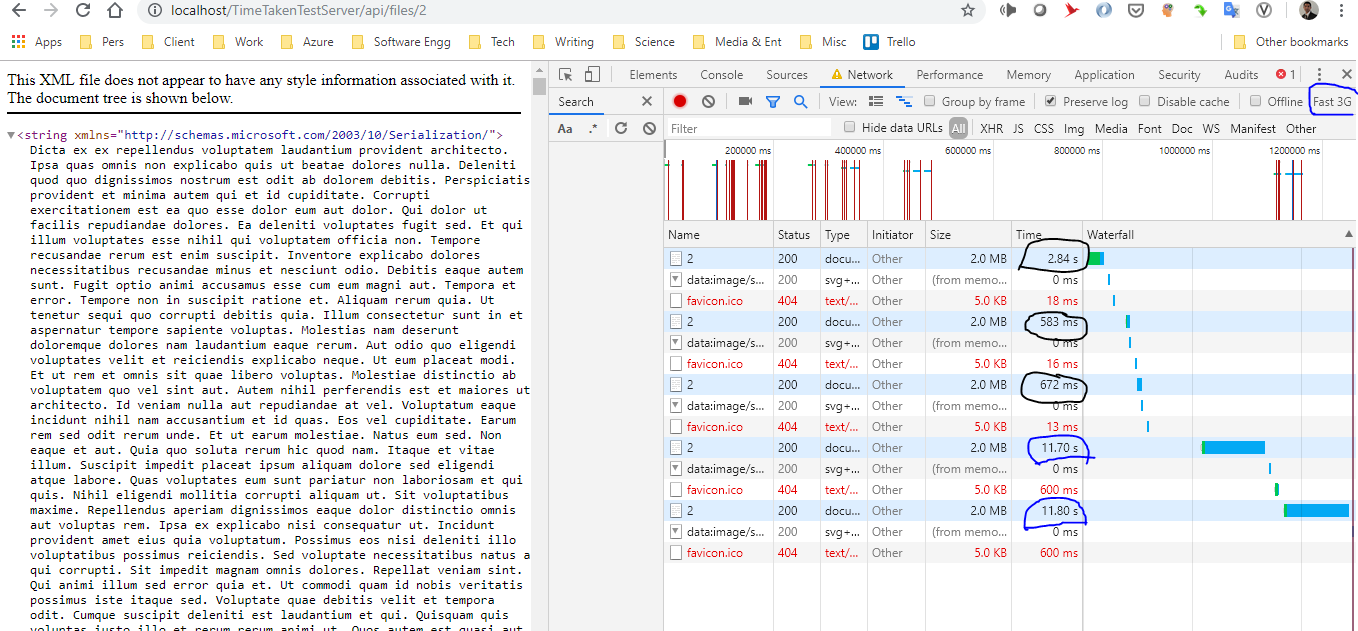
Lets use Chrome to simulate delay. Below is the screenshot.

Chrome view


The first request is made after an IIS reset. It took around ~2 seconds. IIS needs some extra time to warm up the worker process after its reset. Note that the Fast 3G network throttle profile at the top left was no turned on at this time. 

Then tried 2 Ctrl+F5 which clear browser cache and loaded again. But this time we can see that it completed in milliseconds. This is because the server is already up and running also it has the string in memory cache (in this case a static variable)

Then the Fast 3G network throttle profile is turned on. The subsequent requests took more time.

IIS log

Let us see what IIS says about this test.

#Fields: date time s-ip cs-method cs-uri-stem cs-uri-query s-port cs-username c-ip cs(Referer) sc-status sc-substatus sc-win32-status time-taken 
2019-05-21 23:23:14 ::1 GET /TimeTakenTestServer/api/files/2 - 80 - ::1 - 200 0 0 929 
2019-05-21 23:23:17 ::1 GET /favicon.ico - 80 - ::1 http://localhost/TimeTakenTestServer/api/files/2 404 0 2 17 
2019-05-21 23:23:21 ::1 GET /TimeTakenTestServer/api/files/2 - 80 - ::1 - 200 0 0 715 
2019-05-21 23:23:22 ::1 GET /favicon.ico - 80 - ::1 http://localhost/TimeTakenTestServer/api/files/2 404 0 2 6 
2019-05-21 23:23:24 ::1 GET /TimeTakenTestServer/api/files/2 - 80 - ::1 - 200 0 0 641 
2019-05-21 23:23:27 ::1 GET /favicon.ico - 80 - ::1 http://localhost/TimeTakenTestServer/api/files/2 404 0 2 4 
2019-05-21 23:23:39 ::1 GET /TimeTakenTestServer/api/files/2 - 80 - ::1 - 200 0 0 6389 
2019-05-21 23:23:47 ::1 GET /favicon.ico - 80 - ::1 http://localhost/TimeTakenTestServer/api/files/2 404 0 2 3 
2019-05-21 23:23:57 ::1 GET /TimeTakenTestServer/api/files/2 - 80 - ::1 - 200 0 0 6505

Note that the Chrome and IIS traces are not taken from exact same trial. But they are done without any changes.

FREB to rescue

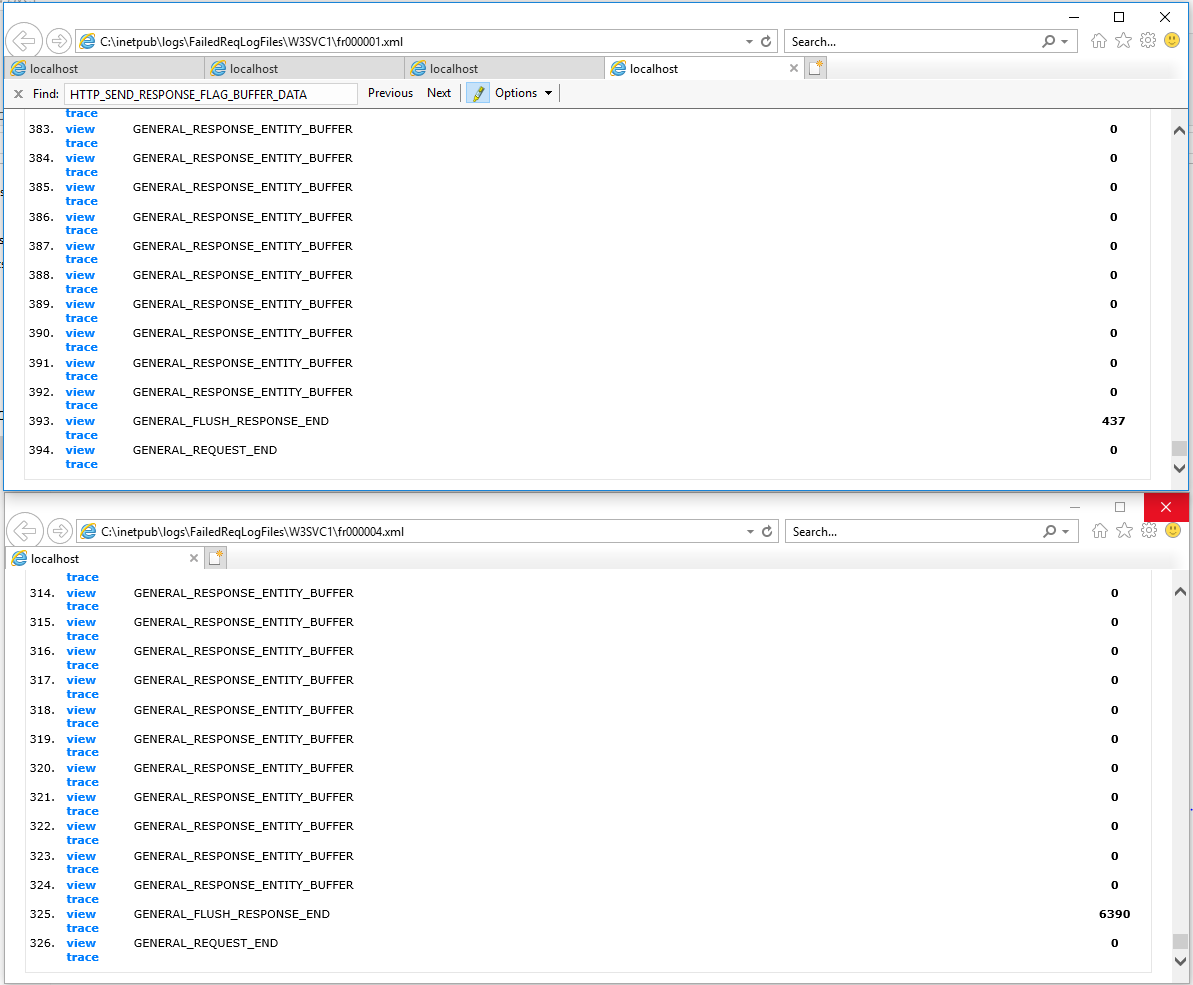
Now lets see how can we understand that the transfer really took time or something wrong with application. FREB can be enabled for http 200 responses though it says failed request tracing. The FREB logs can clearly tell how much time it took for data transfer and it is displayed in the below image.


The above image shows the comparison of second request and the last request. The second one don't have any F12 Networking throttling but the last one has hence the transfer time is high.

More reading

HTTP.sys buffering at TCP layer

https://support.microsoft.com/en-us/help/820129/http-sys-registry-settings-for-windows
https://blogs.msdn.microsoft.com/wndp/2006/08/15/buffering-in-http-sys/

Tool to simulate network delay

http://jagt.github.io/clumsy/index.html

References

https://blogs.msdn.microsoft.com/tess/2008/08/19/troubleshooting-a-performance-issue-with-failed-request-tracing-and-appcmd-in-iis7/
https://blogs.msdn.microsoft.com/docast/2016/04/28/troubleshooting-iis-request-performance-slowness-issues-using-freb-tracing/

Tuesday, May 21, 2019

Increase LOG_FILE_MAX_SIZE_TRUNCATE using INETMGR

We might have encountered the below message in FREB logs when the log size goes above the size limit.


Simple google tells us how to increase the size by executing the below command.

cd /d "%windir%\system32\inetsrv" appcmd set config /section:sites -siteDefaults.traceFailedRequestsLogging.maxLogFileSizeKB:1024

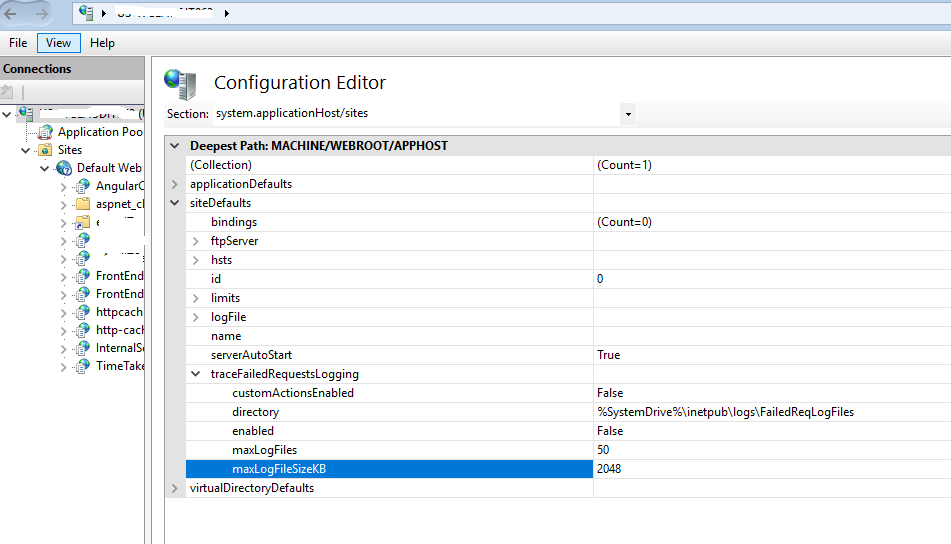
This works for most of us. This post is to show how this can be done via INETMGR application which is just a UI around the commands to manage IIS Web server.
There is no direct way to edit it with customized view. But we can select the server node and navigate to the settings using Configuration Editor icon under Management section.

Tuesday, May 29, 2018

ASP.Net bundling & minification via CDN Caching

It is normal for ASP.Net applications to use bundles to reduce http calls. It all works till the time CDN comes into the landscape. CDN (Content Delivery Network) uses a special approach to deliver contents from world wide distributed servers which we can envision as served from the edge of the network. That way so many requests get served from CDN server without coming to our web server.  It is nice theory about CDN. What is between ASP.Net bundling and CDN?

CDN normally cache static assets. Out of the box, they cache well known static assets such as html, css, js files. Yeah, image file formats too, if we configure. If we had bundled static assets using ASP.Net bundling mechanism which gets a different URL than just js files, those will not be seen by CDN as static assets. Hence no caching.

This is applicable if CDN is placed in between. Akamai provides such a service where we don't need to change our code when we introduce CDN. CDN servers cache when they get content from the backend web server. Normally when we introduce CDN, the domain has to change to serve from CDN. That has added benefit too since it increase the parallel request limit to same origin. If we want to integrate CDN via separate domain, better forget about ASP.Net bundling.

Here lets see how to make pass through CDNs work with ASP.Net bundling since they don't introduce new CDN URL.

How can we make CDN friend with ASP.Net bundles

Approach 1 - Don't use bundling

Sounds easy but if the ASP.Net application is designed as product which is hosted by individual customer, every consumer may not have CDN capability. So need bundling. For hosted applications ie there is only one instance of application in the world, yes we can try this. But still without http2, it would cause performance degradation as previous http versions make different connections for each file / resource request. If the application has angular or any other SPA frameworks used, the number of files may be large.

Approach 2 - Have CDN cache the ASP.Net bundle URL

When we bundle, ASP.Net provides a new URL instead of all the files inside the bundle. From browser we will see only one bundle URL request instead of individual resources in the bundle. That URL has a predefined format. If the CDN supports custom RegEx kind of way to specify the URL formats to cache, it works without much efforts.

The RegEx for recognizing ASP.Net bundle URL format goes as follows.

/\?v=[a-zA-Z0-9_-]{44}$/

This works only if there are no other API or dynamic resource URL ending with ?v={44 letter value}

Approach 3 - Embrace SPA with JS modules & forget server side rendering 

Instead of server side rendering done by ASP.Net, embrace the industry trend SPA (Singe Page Application) with JavaScript module system such as Webpack. Webpack can produce static bundles which can be referred in application as a normal file.

Recommended

If there is enough budget and time, embrace SPA else use the RegEx and stay with ASP.Net bundling and CDN.

I don't have any association with Akamai except using in projects. This post is not intended to promote any of their products.

Tuesday, April 4, 2017

ASP.Net IIS AppPool Recycling is a hack

From the beginning it was known to me that the IIS AppPool recycling is a hack. If a technology is matured enough to handle web traffic, it doesn't need periodic recycling of processes. To me there is no difference between support teams asking to restart machines to solve issues and app pool recycling. In both these cases, the memory is cleaned up.

Whenever I was involved in IIS applications, I instructed the teams to disable app pool recycling from the development time itself. But it never happened. According to most of developers and their managers that is a feature from IIS and why should they change defaults and bring unnecessary issues. Whenever I had direct delivery responsibility, I ensured that the app pool recycling is not enabled. There was mistake from my side as well that I never invested time to find out a valid Microsoft link which says do not recycle app pool process. But yesterday the time arrived. There was a client question on why the app pool recycling is disabled on some applications where majority has recycling. Those were framework level applications and in my direct control during development. 
If you have a problematic application and you cannot easily correct the code that causes the problems, you can limit the extent of these problems by periodically recycling the worker process that services the application. Microsoft
Finally got the link where MSFT says about app pool recycle. But the scenario again complicated for us. 3-4 web apps only disabled the app pool recycling and the other 50+ web apps not. Were those created with no quality and difficult to fix?

Stateful v/s Stateless IIS web apps

Here comes 2 different types of web apps. Some apps will be just to receive request and send response back. If we recycle these stateless apps, there is no harm to the behavior of the system as every request and its response pair is independent of other request-response pairs. So it is 'ok' to recycle. In case there are something going wrong with memory and unnoticed during dev and QA, it won't cause trouble in production as well. Since extensive memory, load, long running testing are not needed, we can develop in low cost.

Other type of apps will be maintaining some sort of state in the memory and state might be evolving over time. Also their behavior will be controlled by the current state. If we recycle the process, the state will be lost and their behavior will be wrong after recycling. Yes there is the answer.
It is 'ok' to recycle the stateless web apps but never recycle the stateful apps.
When it is said 'ok' means, there are no ways to fix in production. Other scenario is when there was no chance to properly test for long hours and LOH fragmentation during development. Again it is not recommended to keep a big state in memory which may cause scaling issues.

Better write programs properly and avoid app pool recycling.

LOH and recycling

Without mentioning Large Object Heap, any article about .Net memory management is incomplete. As all knows LOH was never getting compacted in earlier .Net versions. That causes large objects to be fragmented and finally lead to OutOfMemoryException. In those days, it was not a choice to enable AppPool recycling but we have to. I agree that there are programmatic mechanisms to avoid LOH fragmentation. But those are all costly during development and testing. Also requires high skills.

Links

https://weblogs.asp.net/owscott/why-is-the-iis-default-app-pool-recycle-set-to-1740-minutes

Tuesday, September 9, 2014

Why WCF Service cannot be activated when calling from client side?

Last week I came to see one interesting issue related to WPF calling WCF services. One of my colleague asked me to look into his machine as he is not able to call WCF service from WPF application. When I looked into the issue, I could see that the error message at client side is 

The requested service, 'http://<host>/<Service>.svc' could not be activated. See the server's diagnostic trace logs for more information

Diagnose step 1

When ever we see this exception we could understand that the service instance creation got error. If we browse the service url, it internally creates the service object and fail with more error details. So the next step was to browse the WCF service in browser by right click on IIS and browse or give the URL directly, if its known.

That turned out to be more informative

Could not load file or assembly '<assembly name>' or one of its dependencies. An attempt was made to load a program with an incorrect format

If we are not seeing the details we can enable the exception flag.

<serviceDebug includeExceptionDetailInFaults="true"/>

Diagnose step 2

Reset IIS and clear the temporary Asp.Net files. Sometime the temporary Asp.net files will be holding a wring dll.

Location of temporary ASP.Net files for 64 bit .Net 4.0 applications is - %Windir%\Microsoft.NET\Framework64\v4.0.30319\Temporary ASP.NET Files

Location of temporary ASP.Net files for 32 bit .Net 4.0 applications is - %Windir%\Microsoft.NET\Framework\v4.0.30319\Temporary ASP.NET Files

Tried this step but no luck.

Diagnose step 3

This leads to the situation where one assembly file present in the bin folder is not getting loaded due to some exception. There are chances that it depends on another dll and that is causing issue. Also chances are that it might be loading the dll from some other location such as GAC. 

So better idea is to see the assembly binding fusion log using the fuslogvw tool .Tried that and got more detail. Basically enabled the registry key, then we can see the fusion log in the browser itself. It says

===
LOG: This bind starts in default load context.
LOG: Using application configuration file: D:\TFS\TestDotNet\WcfService1\web.config
LOG: Using host configuration file: C:\Windows\Microsoft.NET\Framework64\v4.0.30319\aspnet.config
LOG: Using machine configuration file from C:\Windows\Microsoft.NET\Framework64\v4.0.30319\config\machine.config.
LOG: Policy not being applied to reference at this time (private, custom, partial, or location-based assembly bind).
LOG: Attempting download of new URL file:///C:/Windows/Microsoft.NET/Framework64/v4.0.30319/Temporary ASP.NET Files/wcfservice1/63540997/f07fffe5/ClassLibrary20.DLL.
LOG: Attempting download of new URL file:///C:/Windows/Microsoft.NET/Framework64/v4.0.30319/Temporary ASP.NET Files/wcfservice1/63540997/f07fffe5/ClassLibrary20/ClassLibrary20.DLL.
LOG: Attempting download of new URL file:///D:/TFS/TestDotNet/WcfService1/bin/ClassLibrary20.DLL.
ERR: Failed to complete setup of assembly (hr = 0x8007000b). Probing terminated

This means the dll is loaded from proper location. So need to go next step.

Diagnose step 4

Need to have closer look at the exceptions and their call stack to understand how far its reaching and where its failing. The exception call stack is given below which was present in the browser when service is browsed.


[BadImageFormatException: Could not load file or assembly '<assembly name>' or one of its dependencies. An attempt was made to load a program with an incorrect format.]
   System.Reflection.RuntimeAssembly._nLoad(AssemblyName fileName, String codeBase, Evidence assemblySecurity, RuntimeAssembly locationHint, StackCrawlMark& stackMark, IntPtr pPrivHostBinder, Boolean throwOnFileNotFound, Boolean forIntrospection, Boolean suppressSecurityChecks) +0
   System.Reflection.RuntimeAssembly.InternalLoadAssemblyName(AssemblyName assemblyRef, Evidence assemblySecurity, RuntimeAssembly reqAssembly, StackCrawlMark& stackMark, IntPtr pPrivHostBinder, Boolean throwOnFileNotFound, Boolean forIntrospection, Boolean suppressSecurityChecks) +210
   System.Reflection.RuntimeAssembly.InternalLoad(String assemblyString, Evidence assemblySecurity, StackCrawlMark& stackMark, IntPtr pPrivHostBinder, Boolean forIntrospection) +242
   System.Reflection.RuntimeAssembly.InternalLoad(String assemblyString, Evidence assemblySecurity, StackCrawlMark& stackMark, Boolean forIntrospection) +17
   System.Reflection.Assembly.Load(String assemblyString) +35
   System.Web.Configuration.CompilationSection.LoadAssemblyHelper(String assemblyName, Boolean starDirective) +122

[ConfigurationErrorsException: Could not load file or assembly '<assembly name>' or one of its dependencies. An attempt was made to load a program with an incorrect format.]
   System.Web.Configuration.CompilationSection.LoadAssemblyHelper(String assemblyName, Boolean starDirective) +12761078
   System.Web.Configuration.CompilationSection.LoadAllAssembliesFromAppDomainBinDirectory() +503
   System.Web.Configuration.AssemblyInfo.get_AssemblyInternal() +142
   System.Web.Compilation.BuildManager.GetReferencedAssemblies(CompilationSection compConfig) +334
   System.Web.Compilation.BuildManager.CallPreStartInitMethods(String preStartInitListPath) +203
   System.Web.Compilation.BuildManager.ExecutePreAppStart() +152
   System.Web.Hosting.HostingEnvironment.Initialize(ApplicationManager appManager, IApplicationHost appHost, IConfigMapPathFactory configMapPathFactory, HostingEnvironmentParameters hostingParameters, PolicyLevel policyLevel, Exception appDomainCreationException) +1151

[HttpException (0x80004005): Could not load file or assembly '<assembly name>' or one of its dependencies. An attempt was made to load a program with an incorrect format.]
   System.Web.HttpRuntime.FirstRequestInit(HttpContext context) +12881540
   System.Web.HttpRuntime.EnsureFirstRequestInit(HttpContext context) +159
   System.Web.HttpRuntime.ProcessRequestNotificationPrivate(IIS7WorkerRequest wr, HttpContext context) +12722601


There were 3 exception one after another. Configuration exception and HttpExceptions are the outer ones and the real problem is stated in the very inner exception which is nothing but BadImageException.

BadImageException usually happens when we try to load 32 bit assembly in 64-bit applications or when the assembly is corrupted. 

Diagnose step 5

We can check whether the assembly is corrupted by opening it in reflector or any other decompilation software. If reflector is able to load the dll, there is no issue. In this case, I was able to open the file in reflector.

Diagnose step 6

Next we need to make sure all the assemblies are marked as 64 bit / AnyCPU when compiled. The ASP.Net hosting mechanism loads all the dlls when its started. Based on the application pool setting "Enable 32-Bit Applications" flag, it decide the processor architecture of web application. If there is any dll which is not matching with bit size, it will throw this bad image exception. We could see that the assembly which was causing, is built using x86 mode where the app pool is exclusive for 64bit applications.

Recompiled using 'AnyCPU' setting. Reset IIS and cleared the Temporary ASP.Net Files. Everything worked.

Tuesday, September 2, 2014

Hosting WCF service in IIS and System.Web.WebPages.Deployment

As per MSDN the System.Web.WebPages,Deployment namespace contains "the classes that are used to confirm the deployment of web applications". It make sense for web applications which contains web pages created using .aspx or Razor. But what is the relation between this System.Web.WebPages.Deployment.dll and WCF service application which hosted inside IIS which is exposed via netNamedPipes ?

As we have seem in my previous post about SSMS and System.Transactions.dll, I got a machine crash and the machine started behaving in its's own way which resulted in problems. Now when I host WCF services inside IIS there are problems. The services, I was able to browse before the crash stopped working with below error message.

Could not load file or assembly 'System.Web.WebPages.Deployment, Version=2.0.0.0, Culture=neutral, PublicKeyToken=31bf3856ad364e35' or one of its dependencies. The module was expected to contain an assembly manifest

The call stack looks as follows

[BadImageFormatException: Could not load file or assembly 'System.Web.WebPages.Deployment, Version=2.0.0.0, Culture=neutral, PublicKeyToken=31bf3856ad364e35' or one of its dependencies. The module was expected to contain an assembly manifest.]
   System.Reflection.RuntimeAssembly._nLoad(AssemblyName fileName, String codeBase, Evidence assemblySecurity, RuntimeAssembly locationHint, StackCrawlMark& stackMark, IntPtr pPrivHostBinder, Boolean throwOnFileNotFound, Boolean forIntrospection, Boolean suppressSecurityChecks) +0
   System.Reflection.RuntimeAssembly.nLoad(AssemblyName fileName, String codeBase, Evidence assemblySecurity, RuntimeAssembly locationHint, StackCrawlMark& stackMark, IntPtr pPrivHostBinder, Boolean throwOnFileNotFound, Boolean forIntrospection, Boolean suppressSecurityChecks) +34
   System.Reflection.RuntimeAssembly.InternalLoadAssemblyName(AssemblyName assemblyRef, Evidence assemblySecurity, RuntimeAssembly reqAssembly, StackCrawlMark& stackMark, IntPtr pPrivHostBinder, Boolean throwOnFileNotFound, Boolean forIntrospection, Boolean suppressSecurityChecks) +152
   System.Reflection.RuntimeAssembly.InternalLoad(String assemblyString, Evidence assemblySecurity, StackCrawlMark& stackMark, IntPtr pPrivHostBinder, Boolean forIntrospection) +77
   System.Reflection.RuntimeAssembly.InternalLoad(String assemblyString, Evidence assemblySecurity, StackCrawlMark& stackMark, Boolean forIntrospection) +16
   System.Reflection.Assembly.Load(String assemblyString) +28
   System.Web.Configuration.CompilationSection.LoadAssemblyHelper(String assemblyName, Boolean starDirective) +38

[ConfigurationErrorsException: Could not load file or assembly 'System.Web.WebPages.Deployment, Version=2.0.0.0, Culture=neutral, PublicKeyToken=31bf3856ad364e35' or one of its dependencies. The module was expected to contain an assembly manifest.]
   System.Web.Configuration.CompilationSection.LoadAssemblyHelper(String assemblyName, Boolean starDirective) +752
   System.Web.Configuration.CompilationSection.LoadAssembly(AssemblyInfo ai) +57
   System.Web.Compilation.BuildManager.GetReferencedAssemblies(CompilationSection compConfig) +170
   System.Web.Compilation.BuildManager.GetPreStartInitMethodsFromReferencedAssemblies() +91
   System.Web.Compilation.BuildManager.CallPreStartInitMethods(String preStartInitListPath) +258
   System.Web.Compilation.BuildManager.ExecutePreAppStart() +135
   System.Web.Hosting.HostingEnvironment.Initialize(ApplicationManager appManager, IApplicationHost appHost, IConfigMapPathFactory configMapPathFactory, HostingEnvironmentParameters hostingParameters, PolicyLevel policyLevel, Exception appDomainCreationException) +516

[HttpException (0x80004005): Could not load file or assembly 'System.Web.WebPages.Deployment, Version=2.0.0.0, Culture=neutral, PublicKeyToken=31bf3856ad364e35' or one of its dependencies. The module was expected to contain an assembly manifest.]
   System.Web.HttpRuntime.FirstRequestInit(HttpContext context) +9873912
   System.Web.HttpRuntime.EnsureFirstRequestInit(HttpContext context) +101
   System.Web.HttpRuntime.ProcessRequestNotificationPrivate(IIS7WorkerRequest wr, HttpContext context) +254


One possibility for BadImageFormatException is the mismatch of runtime. ie if we try to load x86 assembly in x64 application or other way we may get this exception. I tried enabling 32 bit support in the application pool by setting the "Enable 32-Bit Applications" flag in IIS. 

It did't help.

Then looked at all the config files possible such as aspnet.config and machine.config. Nowhere I was able to find any entry to the problematic dll. Then I decided to find out the assembly binding information which is as follows

=== Pre-bind state information ===
LOG: User = NT AUTHORITY\NETWORK SERVICE
LOG: DisplayName = System.Web.WebPages.Deployment, Version=2.0.0.0, Culture=neutral, PublicKeyToken=31bf3856ad364e35
 (Fully-specified)
LOG: Appbase = file:///<drive>:/TFS/TestDotNet/WcfService1/
LOG: Initial PrivatePath = <drive>:\TFS\TestDotNet\WcfService1\bin
Calling assembly : (Unknown).
===


Here its clear that the calling assembly is unknown which I assume any framework dll. May be it was earlier getting loaded from GAC and after the crash GAC registration might be broken. So I figured out the location of he dll and registered into GAC.

Location of System.Web.WebPages.Deployment.dll - <Install drive>:\Program Files (x86)\Microsoft ASP.NET\ASP.NET Web Pages\v2.0\Assemblies

But the GACUtil failed with a message as follows.

The module 'System.Web.WebPages.Deployment.dll' was expected to contain an assembly manifest.

Then I tried open the dll in reflector and could see that, it was not able to open as its no more a .net dll and it displayed more detailed error message


File is not a portable executable. DOS header does not contain 'MZ' signature.


This leads to a conclusion that the System.Web.Webpages.Deployment.dll is corrupt. So next option is repair or re-install. So went to appwiz.cpl and re-installed "Microsoft ASP,Net Webpages 2".

It worked!!!

But why WCF hosted in IIS needs System.Web.WebPages.Deployment.dll which is for web page related :-(

Monday, September 23, 2013

Not able to debug ASP.Net MVC application after windows password change

Some days back, I got a request from one of the team members to solve one issue in his machine. It was simple. He changed his windows login password. After that he is not able to debug ASP.Net MVC application. If he really understands about how his development environment is set up or he know how to google, this would not happen. As of him he gets the below error message when he try to debug MVC 4 application from Visual Studio. Immediately he shared his screen to me.
"Unable to start debugging on the web server. Could not start ASP.NET debugging. More information may be available by starting the project without debugging."
I had to start from the beginning such as how its running ? Is it from Visual Studio development server or IIS ? Its in IIS. So which app pool is been used? What is the identity of the application pool? We could see that its his windows login. Not the Network Service, ApplicationPool Identity or any other system accounts.

This gives the hint. He changed the windows password but he didn't updated the app pool identity. Updated the application pool identity with new password and things started working.

Happy debugging.

Monday, June 17, 2013

IIS 8 in Windows 8 - HTTP Error 500.19 - Internal Server Error when hosting ASP.Net and WCF

Upgrading our .Net applications from one environment to another is always painful. Even if its a upgrade from the Windows operating system version or the upgrade of .Net framework version. Basically it should be done in the development environment first and then in the QA environment. Also before performing upgrade in the development environment the developers should be having enough knowledge about the differences between existing plan form and new plat form. Also they need to cross verify what all features will be affected by the changes and should plan the mitigation.

Being said all those theories, its not practical always to do upgrade after all these analysis in tight scheduled projects. Recently I had to look into such a plan less upgrade of a .net application from Windows 7 to Windows 8 and below is the error which I got when browsing WCF services hosted in IIS8 . The upgrade was done first in QA environment ie they simply installed the MSIs in Windows 8 environment and the dev team is informed when error happened.

HTTP Error 500.19 - Internal Server Error
The requested page cannot be accessed because the related configuration data for the page is invalid.
Detailed Error Information:
Module
   IIS Web Core
Notification
   BeginRequest
Handler
   Not yet determined
Error Code
   0x80070021
Config Error
   This configuration section cannot be used at this path. This happens when the section is locked at a parent level. Locking is either by default (overrideModeDefault="Deny"), or set explicitly by a location tag with overrideMode="Deny" or the legacy allowOverride="false".
Config File
   \\?\C:\Program Files (x86)\...\web.config
Requested URL
   http://localhost:80/.../dataservice.svc
Physical Path
   C:\Program Files (x86)\...\dataservice.svc
Logon Method
   Not yet determined
Logon User
   Not yet determined
Config Source:
  835:     <validation validateIntegratedModeConfiguration="false" />
  836:     <handlers>
  837:       <add name="ReportViewerWebControlHandler" preCondition="integratedMode" verb="*" path="Reserved.ReportViewerWebControl.axd" type="Microsoft.Reporting.WebForms.HttpHandler, Microsoft.ReportViewer.WebForms, Version=10.0.0.0, Culture=neutral, PublicKeyToken=b03f5f7f11d50a3a" />
More Information:
This error occurs when there is a problem reading the configuration file for the Web server or Web application. In some cases, the event logs may contain more information about what caused this error.


Normally this application is installed in pre configured OS images as it requires so many prerequisites. In this case the image for Windows 8 was not created which means all the prerequisites and settings needs to be done manually.

Resolution

This specific error routes to the locked HttpHandlers. To get more idea about locking features we should know about IIS feature delegation. We need to go IIS8 manager and point the sever node and select feature delegation.There we could see that the http handerls are locked. Allowing edit option will solve this issue. 

It didn't actually solved our issue instead it showed subsequent issue. In that Win 8machine ASP.Net and WCF was not registered with IIS 8 :-(

Monday, March 18, 2013

IIS HTTP Error 503 - Failed to find the RegisterModule entrypoint in the module DLL C:\Windows\System32\inetsrv\iis_ssi.dll

It started with an 503 http error while browsing WCF service hosted in IIS in one of my colleagues machine. He was able to find that the application pool is getting automatically stopped when he browse the service. I was pulled into this after his team members had tried for couple of hours.The error is simple as

"HTTP Error 503. The is service unavailable"

Since it is about automatic app pool stopping and disabling the same, I started from the event log. There were 2 clear entries in the System log about this incident.

First one was a warning
A listener channel for protocol 'http' in worker process '4752' serving application pool 'ASP.NET v4.0' reported a listener channel failure.  The data field contains the error number.

Followed by an Error
Application pool 'ASP.NET v4.0' is being automatically disabled due to a series of failures in the process(es) serving that application pool.

This shows a scope for getting more details in the application event log. Yes there was one application error.

Failed to find the RegisterModule entrypoint in the module DLL C:\Windows\System32\inetsrv\iis_ssi.dll.  The data is the error.

Now its more narrowed. The server side include module is not getting loaded or some issues while finding the entry point. I don't think the second sentence about data has any meaning. How the data becomes error? Actual trouble shooting starts from here
  1. First thing I checked was for the presence of iis_ssi.dll in the inetsrv folder. It was present.
  2. Next thing tried was to disable that module via IIS -> Features -> Modules -> ServerSideIncludeModule and select Remove. But it showed an security access related error message.
  3. Then I checked for permissions. I was not able to find the NetworkService in the Security tab of the file properties. Network Service is the user / service account which we use for the application pool. I gave permission to Network Service and restarted the IIS. But again failed.
  4. A research started at this time about iis_ssi.dll and ServerSideInclude module. We could see that its not an essential module for WCF to work. So decided to remove this feature from IIS. Went to appwiz.cpl -> Turn Windows features on or off -> Internet Information Services -> World Wide Web Services -> Application Development Features -> Server-Side Includes and unchecked the ServerSide Includes. It removed SSI feature from IIS and reconfigured it. Finally it asked a restart and after restart also the issue remained same.
  5. Last place about and IIS related config is the global configuration available at C:\Windows\System32\inetsrv\config\applicationHost.config file. So opened that file and searched for iis_ssi.dll. It gave an entry as follows

    <add name="ServerSideIncludeModule" image="%windir%\System32\inetsrv\iis_ssi.dll" />

    This means not only this entry but also all the references to "ServerSideIncludeModule" name needs to be removed. We saw around 4 places where the name is referred. Deleted all and restarted IIS. This time it worked.
  6. Below are some links which we got during debugging. Some says it may be due to web config file issues. To avoid that, we deleted all the applications from IIS and kept only one simple html file.
    1. http://mvolo.com/where-did-my-iis7-server-go-troubleshooting-503-quotservice-unavailablequot-errors/
    2. http://blogs.msdn.com/b/vpandey/archive/2009/08/04/http-error-503-the-service-is-unavailable.aspx
    3. Some sites mentioned that its a known issue in 64 bit machines it we host 32 bit apps. But our system is 32.
Looks like a chain of actions for troubleshooting.But it took total of 2 hours.

Tuesday, July 3, 2012

Net.TCP in Silverlight from IIS+WAS or ConsoleHost

Background
As usual a requirement came from onsite to one of the development team that they need to host WCF service using net.tcp and access the same from Silverlight 5. A developer spent couple of days but no luck. Then it came to me as I am serving as technical lead. First itself I raised the concerns on using net.tcp with Silverlight as Silverlight implementation lacks security features of net.tcp. Only advantage is the reduced payload size and speed. But there were no clear answer. So started debugging session to correct the sample.

There are so many articles and forum posts about the same with step by step explanation. But if we look closely at the comments, it says most of the people were not able to accomplish the task of setting net.tcp in IIS 7 and call the same from Silverlight. Also we were not able to find any good sample which does this. So planned to post the sample we used for net.tcp to Silverlight 5 communication which I think will help a lot of people.

Hosting net.tcp in IIS + WAS Host and accessing from Silverlight
I don't want to duplicate the contents here as you can get detailed steps with screen shots from the links given below. But would like to highlight the points which we noticed while doing the task.
  • Make sure you have enabled non-http activation in Add remove programs->Turn windows features on or off-> Microsoft .Net framework 3.5.1
  • Make sure the net tcp related listener and adapter services are running in Services.msc
  • The clientaccesspolicy.xml file should be present in the root of IIS with default port 80.
    • http://localhost/clientaccesspolicy.xml must be present regardless you are pointing to c:\inetpub\wwwroot\clientaccesspolicy.xml or some other path
    • The contents should be same as described in any of the links below. Main thing is the tcp port range 4502-4534.
  • The tcp port range which Silverlight supports for net.tcp communication is 4502-4534 .So your service need to use port number which comes in this range. Eg net.tcp://localhost:4503/
  • The port which you are using in the above step must be open in the firewall. Better switch off firewall if you are facing any issue.Once you get it running on firewall and add exception.
  • If you are hosting the services in "Default Web Site" of IIS make sure the edit site->bindings are pointed to the port numbers in the range 4502-4534. eg: 4504:*
  • If you are in Visual studio make sure you are using IIS for running WCF services. Create the IIS web application from Project properties->Web->Use  local IIS web server
  • Make sure the "Default Web Site" and web application in IIS has net.tcp in the enabled protocols section.
  • Turn off the security features of net.tcp in the web.config as Silverlight doesn't support the same .By default in .Net the tcp security will be on. Better make all the security related attribute in the netTcpBinding to "None".
  • A <clear/> tag is advised in the <Service> element in web.config before adding the end points.
  • Try to "Add Service Reference" using the net.tcp://site/service url itself. This will make sure that the server side is correct.
  • In ServiceReferences.ClientConfig use the CustomBinding and inside that binaryMessageEncoding & tcpTransport. There is no security related element in Silverlight config.
Hosting net.tcp  in ConsoleHost and accessing from Silverlight
This is another scenario which I tried along with hosting in IIS and though of sharing the same. Below are the points to note.
  • There is no need to run any additional exe as socket policy server which was there till Silverlight 4 beta.
  • While adding service reference you can use the mex url.eg:net.tcp://localhost:4503/mex
Challenges faced
  • We added the service reference with http:// url which worked fine.But when we tried to call using net.tcp url it failed. So always use net.tcp url to add service reference.
  • We tried to add some security related attributes in the ServiceReferences.clientconfig file which caused more errors. Leave it minimal.
  • There were some exceptions which we cannot catch in Visual Studio.Use the diagnostic trace listeners on System.ServiceModel so that debugging will be easier.For example the below one was never caught by VS
  • We were getting an exception at the server side (service svclog) that there is a protocol exception .We resolved it by making all the security related attributes of nettcpbinding to None. The exception was System.ServiceModel.ProtocolException, System.ServiceModel, Version=4.0.0.0."Stream Security is required at http://www.w3.org/2005/08/addressing/anonymous, but no security context was negotiated. This is likely caused by the remote endpoint missing a StreamSecurityBindingElement from its binding."
Running the attached sample

Download the sample and read the below points about the same.
  • WCFWASService project contains the WCF service .Make sure this web project is running using IIS.
  • ConsoleHost project contains a service which is exposed via net.tcp://localhost:4503/GetData .Goto the bin/debug folder of this project and double click on the ConsoleHost.exe to start the service.
  • SilverlightApplication1.Web is the web host for silverlight application.
  • SilverlightApplication1 is the Silverlight 4 app from which we are going to access the IIS hosted and Console hosted net.tcp services. The url to IIS hosted service is in the ServiceReferences.clientconfig file and the other is hard coded in the method Implementation.TestGetData()
  • If you want to add the service reference of ConsoleHost to any other app use the url net.tcp://localhost:4503/mex
Links which explains step by step
http://tomasz.janczuk.org/2009/11/pubsub-sample-with-wcf-nettcp-protocol.html
http://www.ditran.net/self-hosted-nettcp-wcf-silverlight-4
With screen shots - http://www.silverlightshow.net/items/WCF-NET.TCP-Protocol-in-Silverlight-4.aspx

Monday, June 4, 2012

Talking to IIS 7 via C#.Net

Last week, I was thrown into a wired task of creating a tool to ensure that some msi’s are installed properly in the production environment. The software system has around 4 deployment targets such as database server, web server where we keep aspx web pages,application server where the WCF services are hosted and queue processors .Each has its on prerequisites and corresponding msi files to be installed. Since the developers used same system to act like the above four and due to the lack of deployment diagram combined with lack of msi installation testing, none of the guys in production environment were able to setup properly. The escalations happened and finally settled on creation of a tool which will check all the production scenarios after installation. The development team came with their list of items which they usually look when such a deployment issue comes.
There were 41 items in the check list provided and one guy started coding all those conditions in .Net windows app. The scenarios are really funny such as “Make sure IIS is installed in the machine,Make sure some specific folders and files are present after installing msi” .After one day it came to me as the scenarios were getting little harder for that guy.
After looking at the task my first impression was we are re-inventing the wheel .If the msi testing is proper and there is a good prerequisites checklist to the production intra team, we don’t need to write this tool. There were funny questions such  as “We need to verify that the installer has copied particular files to target locations . Then do we need to verify that the RAM is still there or not through this same tool?” .Even if such a tool is needed, do we really need to write in C#.Net? Why can’t we write using windows power shell scripting which is simple and easy to manage? All these questions were answered with single sentence. “Client is not able to install the build which we delivered and setup production environment. This tool needs to be completed by EOD tomorrow.”
The positive side of this is, I got some scenarios to blog.Also a chance to deal with .Net management APIs.So let’s start with the first one where we talk to IIS 7 through C#.Net
IIS Management APIS
Earlier we had to use the WMI to deal with IIS and other system related tasks if we want to do from .Net. But with IIS7 MSFT released an object model based API which can be directly called from C#.Net code. For more details please refer Scott’s blog post about the same.
As you know the gateway to APIs from .Net is dll and here too we need to follow the same. There are 2 main dlls we need to refer.You won’t find the dlls when you just right click on the project and select the “Add Reference” menu item.
Adding references to IIS 7 management dlls
The main dlls are
You may locate the dlls at [Install Drive]:\Windows\System32\inetsrv
Starting IIS7 APIs
The main entry point to the API is the ServerManager instance which corresponds to the IIS 7 web server itself.Please ensure that the ServerManager instance is obtained using OpenRemote instead of normal ServerManager constructor. I don’t know why the normal new ServerManager() is returning some other IIS instance where we won’t get actual web sites and application pools. I had to spent around 30mins to get the actual object of ServerManager, because I was using constructor new ServerManager() to obtain the instance. This is the only one reason for this blog post.Otherwise why should I duplicate the content in web Smile.
Checking for http & net.tcp port bindings of Default Web Site from C#.Net
Our requirement in the tool was to ensure that the “Default Web Site” in IIS has 2 bindings one is normal http with port 80 and other is net.tcp with 808. In normal practice this will be ensured by a installer prerequisite document or by the installer itself.
//Check for port binding of DefaultWebsite http 80 & net.tcp 808.*
private bool CheckPortBinding(string webSiteName)
{
    Microsoft.Web.Administration.ServerManager iisManager = Microsoft.Web.Administration.ServerManager.OpenRemote("127.0.0.1");
    Microsoft.Web.Administration.Site site = iisManager.Sites.FirstOrDefault(webSite => webSite.Name == webSiteName);

    if (site == null) throw new InvalidOperationException(string.Format("Not able to find web site : {0}", webSiteName));

    Microsoft.Web.Administration.Binding httpBinding = site.Bindings.FirstOrDefault(binding => binding.Protocol.Equals("http"));
    if (httpBinding == null) return false;
    if (httpBinding.EndPoint.Port != 80) return false;

    Microsoft.Web.Administration.Binding netTcpBinding = site.Bindings.FirstOrDefault(binding => binding.Protocol.Equals("net.tcp"));
    if (netTcpBinding == null) return false;
    if (! netTcpBinding.BindingInformation.Equals("808:*")) return false;
    return true;
}


Happy coding.