Showing posts with label Visual Studio. Show all posts

Friday, May 29, 2020

There was a game called Visual Studio Achievements. What happened to that?

Not so long long ago, there was a thing called Visual Studio Achievements. It is called so because it helps developers show their achievements based on day to day working with Visual Studio. There is an extension that evaluates the activities and reports to the server. Developers can proudly show their craftsmanship in their blogs and web pages.


But in the latest version, unfortunately, that extension is not available. As per Microsoft, it is not getting prioritized. Not that extension, the widget that shows the achievements also not working.

Really sad.

Tuesday, May 5, 2020

Convert traditional visual studio project to multi targeting SDK-Style library project

Background

To directly jump to the problem this post is dealing with by skipping the story, directly jump to the last paragraph in this section.

When we were developing .Net libraries or third-party components in the early days we had to keep one project per framework version. That is because there would be more than one version in the mainstream at any time. Though Visual Studio 2008 onwards there is some sort of multi-targeting which matured with VS 2010, it was not easy to publish libraries from one project targeting different framework versions.

The need to target multiple versions became intense with the introduction of .Net Core. Both Full .Net Framework, as well as .Net Core, keep getting new versions.

But it changed totally when Microsoft introduced multi-targeting library projects in Visual Studio 2017. For simplicity skipping the PCL(Portable Class Libraries) which was introduced in between to deal with common code base for Silverlight and .Net Framework. At that time, there was real confusion about what library project to choose when we create new. Later Microsoft introduced JSON based project file for .Net core which dropped with a migration path.

The new project format really simplified the .csproj files. Initially, it was more related to the .Net Standard but later it is used for different purposes as well even for console apps. Let us not get into .Net Standard as differentiating it is another post by itself. Finally, the new project format got the name SDK-Style project which we can identify by the below tag in the project file (.csproj)

<Project Sdk="Microsoft.NET.Sdk">

One of the earliest blog posts explains what is the vision when they revamped the project file format. No listing of files inside the project file, can produce nuget directly without nuspec, easy modification without IDE, etc... were some. Until then the csproj was considered as only software editable file format though it is XML. But with the SDK-Style project format, though it is still XML, humans are also allowed to edit manually. More details can be found here.

Now the csproj is more like the NodeJS development where the packge.json is human editable. Really dreaming for a day when Microsoft says "develop with NodeJS or something else and host in Azure". Just a dream.

Let us come back to the purpose of this post. Here we are seeing how to convert existing old nuget library projects to modern SDK-Style library projects which can target multiple frameworks and versions including from .Net 4.5 to .Net Core 3.1.

Existing approaches

The easy way most of the internet says on converting existing projects to a multi-targeting SDK-Style library project is to create a new project. Then just copy-paste the files from old project location to new. Since the new project format doesn't require all the files to be added to the project file its easy as just copy. Links are given in the references section.
Just compare with NodeJS development where package.json doesn't need to know all the files. 

There is another way to convert the projects to SDK-Style. First, convert the nuget package references from the packages.config to <packagereference> tag in csproj. Then use a tool to migrate the project file. There seem multiple tools listed below though they point to the same GitHub repo. Maybe one is a wrapper over other when VS 2019 released.

Manual approach

However, it seems easy to convert by hand, if our project is not that much complicated and confirms the compatibility. The only problem is that we need to clean the project which is not required if we start a new project and copy files.

Manually porting project to SDK-Style library project

Below goes a diff of manual porting of one project. If the iFrame is not loading directly go to the GitHub URL. Another difference is that the SDK-Style doesn't really require the Assemblyinfo.cs

Manually porting test project to SDK-Style

The same can be applied to test projects as well. The link to the comparison is here.

Please note that it worked smoothly as this project is simple and only one person handles all at this point. When working in Enterprise environments or a large team environment, it would not be efficient as following the steps such as evaluate compatibility, refactoring projects to smaller pieces before doing anything.

References

https://weblog.west-wind.com/posts/2017/jun/22/multitargeting-and-porting-a-net-library-to-net-core-20
https://www.michaeltaylorp3.net/porting-a-net-framework-library-to-net-standard/

Tuesday, July 2, 2019

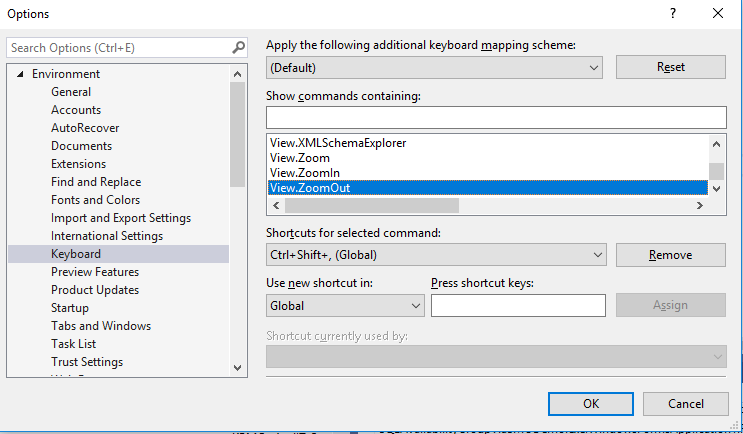
VS 2019 Zoom out shortcut missing

This is not a brainer. Just documenting a behavior noticed in VS2019 and a quick solution.

Somehow the VS2019 doesn't seems to have the key binding for Zoom Out using the key CTRL+SHIFT+, which essentially becomes CTRL+SHIFT+<. 

We can do research and find out what has happened. Or just add the missing key binding in options as follows.


Tuesday, April 9, 2019

Visual Studio Online / Azure DevOps load testing - On-premise agent service is not starting

This is a simple troubleshooting post related to VisualStudio Online or Azure DevOps load testing.
The load testing needs agent programs to be installed on multiple machines to generate load. We can use agents provided by Microsoft as well if our application is straight forward and accessible from Microsoft hosted agents.

If we are in Enterprise or in restricted environments, we may have application hosted internally and only accessible via domain joined machines or via other constraints. Then we need to run the agent program on premise.

Problem

The agent program is a windows services which we can see in services.msc console. Sometimes the agent service gets stopped and below error will show up when we try to restart.

---------------------------
Services
---------------------------
The VSTSLoadAgentService service on Local Computer started and then stopped. Some services stop automatically if they are not in use by other services or programs.
---------------------------
OK 
---------------------------

Solution

Since this Azure DevOps load testing tool is deprecated now and ending its life next year around this time, lets not go into the details why its not working. Lets see a hack.

As standard Microsoft solution which is as famous as machine restart, lets uninstall and install the agent program again and it will work.

Since the installation is by running below PowerShell scripts, it doesn't seems polluting registry and all.

Uninstalling agent

Uninstall command needs the agent name. If the name if unknown, first we need to get agents list. Example is as follows.

.ManageVSTSCloudLoadAgent.ps1 -TeamServicesAccountName https://<organization>.visualstudio.com -PATToken <PATToken> -AgentGroupName <group name> -GetAgents

to uninstall an agent follow the below command.

.ManageVSTSCloudLoadAgent.ps1 -TeamServicesAccountName https://<organization>.visualstudio.com -PATToken <PATToken> -DeleteAgent -AgentGroupName <group name> -AgentName <agent name>

Now install the agent again.

.ManageVSTSCloudLoadAgent.ps1 -TeamServicesAccountName https://<organization>.visualstudio.com -PATToken <PATToken> -ConfigureAgent -AgentGroupName <group name>

The ManageVSTSCloudLoadAgent.ps1 file can be downloaded from this location. The commands above has some parameters enclosed in '<' & '>' as placeholders. We need to use actual values there.

Tuesday, March 1, 2016

npm install karma in windows 8 ends with error TRK0005: Failed to locate: "CL.exe"

I was recently working with Travis-CI to setup CI & CD for a pure browser app/static web site. Details are there in a previous post. Karma is the one decided to use as test runner. Things were good till the time I start installing Karma into local node folder using --user-dev. The error I got is as follows when installing Karma.

Building the projects in this solution one at a time. To enable parallel build,
please add the "/m" switch.
TRACKER : error TRK0005: Failed to locate: "CL.exe". The system cannot find the
 file specified. [C:\Users\<user name>\AppData\Roaming\npm\node_modules\karma\node_mod
ules\bufferutil\build\bufferutil.vcxproj]

gyp ERR! build error
gyp ERR! stack Error: `C:\Program Files (x86)\MSBuild\14.0\bin\msbuild.exe` fail
ed with exit code: 1

It turns out though it says NPM module its using lot of C++ inside. Karma cannot be built without C++ compiler. When I googled most of the people are saying it never tested in Windows machines. I was not in a situation to go to a Linux machine for this. After spending more time with google, I could see that it requires VS 2015 with Visual C++ language support.

Reinstalled VS 2015 with C++ features and it worked.

Moral of the story - Open source is still mainly for Linux developers :)

Tuesday, February 23, 2016

Why I moved www.JoymonOnline.in code to Github from VS Online

The related between me ad VSOnline was very good. It was all working fine till I wanted to setup continuous integration and delivery to my personal web site www.JoymonOnline.in.

My Requirements

Its was simple.
  • Free - Need to get the continuous integration in free.
  • CI & CD - Support for hosted service preferred
    • Support for running unit tests and integration tests.
  • Integration with source control - The integration should happen as soon as I check-in
Everything available there in VS Online. 1000+ minutes of build is more than enough for doing CI activities. But still why I had to move to Github + AppVeyor combination?

Issue 1 - No IIS

I was using IIS hosted tests for the web site. In my development machine I can host the project in IIS and run from Visual Studio. The test methods were attributed with [HostType("ASP NET")] to get the tests run by calling the IIS hosted pages. When I tried to run the same tests from VS Online, I could see that I need to write extra scripts to create IIS web app more than that VS Online build machines  does not have IIS. The suggestion is to have machine somewhere else on premise or in cloud and deploy the app there and run unit tests.

To be frank, I don't have enough budget to have a machine in the internet for doing integration testing of my web site.

Issue 2 - No admin access

When the build machine is allocated for us from VS Online, our build is not running with admin privileges. So even if we try to host web app with other frameworks such as MVCIntegrationTestFramework, it won't allow.

Link to list of software in VS Online build machine.

What I get in Github + AppVeyor

  • Hosting in Github is free. Only thing is my source will be public. But what is there in it? HTML & CSS files which anyone can copy from browser.
  • AppVeyor is free if the source is in Github. They provide admin access to our build activities and has IIS in their machine along with other software.
  • Secure storage of credentials to do Web Deploy or FTP upload
More details are in one of the earlier post.

So which is better? Absolutely going to Github and setting up CI & CD via AppVeyor is the way

Now everything is good. After my check in AppVeyor build the site run unit testing and deploy to staging. After manual testing in staging, if I put a release tag on Github, AppVeyor will deploy to my production www.joymononline.in server which is in GoDaddy.

Tuesday, February 9, 2016

Automated integration testing in ASP.Net MVC & Forms without IIS

Background

I have wrote about testing ASP.Net web forms in one of my previous post. This the era of MVC and I am still writing about web forms. Mainly I am working with web forms only for my web site http://joymononline.in. I have started it before MVC days and still I don't see any reason for converting to MVC. Its serving its purpose using the web forms technology? Why should I change? Another reason I am keep it there in web forms just to realize that technology should not drive our architectural decisions. Every time before I suggest MVC for any project, I think about my own web site and think twice whether we should go to MVC or not? None in my company agree or do in old web forms but its still worth considering and making sure there is specific reason for selecting ASP.Net MVC. According to them we should never do anything in web forms.

Recently I tried to implement Continuous Integration and Continuous Delivery to my web site. Details of doing it via AppVeyor can be found in another post. It was very easy to run unit tests in the integration server.

Problem

But the one of the issue I found during that exercise is on running Integration tests. What I wanted was to make sure all the pages in my site is browsable after each check and and deploy to staging. I was using [HostType("ASP.NET")] attribute to run the tests against IIS. This is mentioned in my earlier post about testing web forms. This works well in development machine as I have created IIS web application from Visual Studio and the project was pointing to that web application(Project Properties->Web->Server->Local IIS in VS 2013). But in build machine, this hosting will not happen automatically. We need to write script to host the application to IIS which is according to me extra task.

Possible approaches

This problem is not new. Many people have solved it in many ways. There are free solutions such as using tools like Selenium or can use hosting libraries such as WatiN, MVCInterationTestFramework etc... Some more options can be seen in the below link.
http://stackoverflow.com/questions/118531/what-is-the-best-way-to-test-webforms-apps-asp-net

My Solution

The requirement is clear. We need to host the site in a web server to run integration tests. So why can't we start a web server before the test begins and the test request site page. This lead to MVCIntergationTestFramework library. This .Net library helps us to host any folder as IIS web application. It also has some features to test results from MVC response.

No need to get confused with MVC prefix. As mentioned earlier, we can host any folder as IIS web application. So web forms also works. The main git project has many clones and one of those provide nuget as well named FakeHost. So its easy to include into VS test project.

Continuous integration

Since it doesn't need upfront IIS web application, it is easy to run tests from CI server provided it has IIS in it. AppVeyor has IIS in it and it runs smoothly there.

Once again this is my solution towards a small problem of integration testing of my personal web site. It may not be applicable always. If anybody wants to take a look at production code how its done, have a look at my personal web site code in Github. Now I am really enjoying the free CI & CD life. I don't know how to write down the joyful feeling of getting our source compiled after each check in, automatically testing the same and publish to staging and production if everything goes well. Everything free.

Happy CI & CD

Tuesday, February 2, 2016

What is BrowserLink and how to get rid of that?

We were on a Javascript debugging session which involved Web Workers, FileAPI and jQuery in an http(s) enabled page. There were so many things in the F12 console window which increased the difficulty in debugging the same. When the Web Workers seems not accepting the messages, we started putting so many console.logs to understand where it breaks actually. Soon we notice that there is some .Net exception stack coming in the browser console as follows

[19:45:14 GMT-0400 (Eastern Daylight Time)] Browser Link: Exception thrown when trying to invoke Browser Link extension callback "madskristensen.editorextensions.browserlink.unusedcss.unusedcssextensionfactory.GetIgnoreList":
System.Reflection.TargetInvocationException: Exception has been thrown by the target of an invocation. ---> System.NullReferenceException: Object reference not set to an instance of an object.
   at MadsKristensen.EditorExtensions.BrowserLink.UnusedCss.UnusedCssExtension.GetIgnoreList()
   --- End of inner exception stack trace ---
   at System.RuntimeMethodHandle.InvokeMethod(Object target, Object[] arguments, Signature sig, Boolean constructor)
   at System.Reflection.RuntimeMethodInfo.UnsafeInvokeInternal(Object obj, Object[] parameters, Object[] arguments)
   at System.Reflection.RuntimeMethodInfo.Invoke(Object obj, BindingFlags invokeAttr, Binder binder, Object[] parameters, CultureInfo culture)
   at Microsoft.VisualStudio.Web.BrowserLink.ClientMessaging.DispatchMessage(BrowserLinkConnection connection, MessageArgs obj)

The debugging happened in a dev machine. At first we thought there is some VS extension failing. But why should it come to browser? Sometimes when we debug js inside browser it enters strange file other than jQuery which took to the height of frustration. The debugging was kind of over after some time. But this wired call stack struck in my mind.

Immediately after the debugging, I googled for what is this browser link. I could see that its a feature from Microsoft from VS 2013 on wards, enabled by default for dealing with more browsers. More specifically refreshing multiple browsers associated with Visual Studio. If this is enabled Visual Studio establish links between browsers an can refresh them. It uses modules to inject javascript etc...

Wow...I immediately disabled it by following the below link.

http://blogs.msdn.com/b/webdev/archive/2013/06/28/browser-link-feature-in-visual-studio-preview-2013.aspx

Tuesday, January 12, 2016

Joyful Tools for Visual Studio - Remove commented code

Added one more feature. Those who downloaded last week might have got this feature. The blog posts are scheduled so announcement comes very late.

Started using AppVeyor as CI tool. They are cloud hosted and give free CI for open source projects in Github. Support also good. More details of the CI experience will be posted separately.

Tuesday, January 5, 2016

Joyful Tools for Visual Studio

Background

There won't be any confusion on Visual Studio as the best software development tool available today. Earlier it was mainly to Microsoft technologies. But now its opened to other technologies as well. Being the best tool in the world, it cannot incorporate all the features. For example if we want to remove all the multiple blank lines there is no direct option in VS except find and replace using RegEx.
When we develop any application made for generic purpose hardware which is computer, it cannot incorporate all the needs. One thing is that the developers cannot foresee all the needs of users. Some needs may be specific to specific user/project groups.

Visual Studio Extensions

This problem is always solved by application by giving provision to extend the application via plugins. Visual Studio is not different it has option to incorporate extensions / plugins. We can inject our own menu items, tool windows and all into Visual Studio.

For adding a direct method to remove multiple blank lines also we can extend Visual Studio. I created a plugin some years back and hosted the code in codeplex. It was very much useful to me who is working on a project which is running for last 8-10 years. So many blank spaces just to increase the file size. Some files has 5000+ lines. When a new developer comes to the team, they are just scared of touching the code. Mainly because of the size of files. So I thought of at least removing the continuous blank lines so that the scariness can be reduced somewhat.

Moving to Git and rebranding

The earlier name of the extension project was removeblanklines which limits its area to one problem. I am planning to add more features to it such as removing commented code except xml comments. So a rebranding felt right to me. So renamed it to "Joyful Tools for Visual Studio".

Extension can be downloaded from Visual Studio Gallery or directly installed from Visual Studio

https://visualstudiogallery.msdn.microsoft.com/c9256992-8b91-4448-b31c-fa1cd6a27455

Source code

I don't think there is any need to tell why moving from codeplex to Github.
https://github.com/joymon/joyful-visualstudio

Tuesday, May 19, 2015

Unit testing ASP.Net Web Forms

Scenario

We have a simple legacy web application created using ASP.Net Web Forms. It works well and doing its duties without fail. Mainly it deals with simple pages not many transactions involving many pages. But rarely there are changes coming in. Even if the changes come frequently, the changes are small changes which are not affecting the core functionality of web site. Being a passionate software engineer, we wanted to bring innovation into the project such as refactoring to patterns and more object orientation.

Problem

We are confident on the refactoring we are doing in the site. But still there is a factor of fear that whether those changes will break the other pages in the site or not? Basically need to make sure all the links are working. Normally after a change we manually click on every link and make sure they are all loading.

That is a repetitive work. No software engineer should be doing repetitive work. We need to solve this in less cost. As usual since its legacy application, there is no budget to buy tools or automated testing service.

Approaches

1.Write a tool to validate links

We can write a tool which will parse the html of default.aspx and make sure all the links are working properly ie returning valid html contents. Can use XMLHttpRequest or WebClient class to accomplish it. Can configure the tool to run as post build action.

Challenges are in validation because there is no guarantee that HTML pages can be easily parsed with XML classes. There is a nuget called HTML Agility pack which we can try here.

2.Write unit tests on existing Web Forms app

Write unit tests for all the pages and at least make sure all the are passing.

After evaluating, I feel the unit tests are the way to do developer testing. But is my legacy application written as testable. Absolutely no. Now what we can do? One way is to rewrite as ASP.Net or use the Url based unit test. Refactoring the business logic and testing those is not applicable as the site doesn't have complex logic and more than that we need to make sure the pages are all working after our change.

3.Convert into ASP.Net MVC and unit test

Though this is the perfect solution most of the time this will not work out because.
  1. There may not be enough budget for maintaining legacy app or convert into ASP.Net MVC because from the business perspective, the site is doing its duty properly
  2. There might be links already bookmarked by users. Those will be invalid unless there is a rerouting mechanism in new MVC application.

Solution - Unit test ASP.Net Web Forms

The concept of unit test is applied to one level above the normal unit testing of classes and methods. Here we test the ASP.Net Pages itself. We can check particular properties of Page is set when rendered for a particular request url. Below are the steps to create unit tests for ASP.Net Web pages

1.Create UnitTest Project

Create normal unit test project from VisualStudio->New->Project dialog which we used to create for other scenarios such as class libraries or MVC.

2.Refer System.Web

Reference to Syste.Web.dll in UnitTest project is required if we want to hold the Page variable for assert.

3.Write test method with special attributes

Now comes the testmethod same as in normal test project. Here additions are 2 attributes HostType and UrlToTest. They specifies where the web page is hosted and what page corresponding test method is going to test. Below is one scenario where test method is testing a page hosted in Local IIS server.

string url = "http://localhost/joymononline/"
[TestMethod]
[HostType("ASP.NET")]
[UrlToTest(baseUrl+"links.aspx")]
public void WhenLinksPageIsRequested_ShouldReturn200AndContent()
{
    Page page = TestContext.RequestedPage;
    string url = Path.Combine(baseUrl, "links.aspx");
    //Assert.IsTrue(UrlIsValid(url));
    Assert.IsTrue(page.Title.Equals("Joymon Online | Links"));
}

If you are looking for how to test a web application running from development server, please have a look at the below links.


I strongly recommend developing by pointing to local IIS server, because IIS is the way your application is going to be served to end users. Otherwise there will be scenarios of  "works on my machine" which is really tough to deal with.

Debugging IIS hosted Web Forms Unit test

By default if we put a break point in ASP.Net Web Forms unit test where the site is hosted in IIS, it wont get hit. We need to attach to IIS process w3wp.exe.

So put a Debugger.Break or Debugger.Launch. This will open up an error dialog and from there we can attach to W3WP.exe.1

Also need to make sure that the dlls are compiled in debug mode.

Issues

Sometime there may be issues when running the unit tests. One error what I faced was below.

The URL specified ('http://localhost/joymononline') does not correspond to a valid directory. Tests configured to run in ASP.NET in IIS require a valid directory to exist for the URL. The URL may be invalid or may not point to a valid Web application

There are multiple reasons for this.

First we need to run Visual Studio in admin privilege. 

Second we need check whether the below entry is logged into event log viewer -> application  node

(QTAgent32_40.exe, PID 12920, Thread 14) WebSites.GetWebServer: failed to create AspNetHelper: Microsoft.VisualStudio.Enterprise.Common.AspNetHelperException: The website metabase contains unexpected information or you do not have permission to access the metabase.  You must be a member of the Administrators group on the local computer to access the IIS metabase. Therefore, you cannot create or open a local IIS Web site.  If you have Read, Write, and Modify Permissions for the folder where the files are located, you can create a file system web site that points to the folder in order to proceed. ---> System.Runtime.InteropServices.COMException: Unknown error (0x80005000)
   at System.DirectoryServices.DirectoryEntry.Bind(Boolean throwIfFail)
   at System.DirectoryServices.DirectoryEntry.Bind()
   at System.DirectoryServices.DirectoryEntry.get_IsContainer()
   at System.DirectoryServices.DirectoryEntries.ChildEnumerator..ctor(DirectoryEntry container)
   at System.DirectoryServices.DirectoryEntries.GetEnumerator()
   at Microsoft.VisualStudio.Enterprise.Common.IISHelper.GetWebServerOrdinal(Uri site)
   --- End of inner exception stack trace ---
   at Microsoft.VisualStudio.Enterprise.Common.IISHelper.GetWebServerOrdinal(Uri site)
   at Microsoft.VisualStudio.Enterprise.Common.IISHelper.get_WebServerOrdinal()
   at Microsoft.VisualStudio.Enterprise.Common.IISHelper.get_RootPath()
   at Microsoft.VisualStudio.Enterprise.Common.IISHelper.get_PhysicalPath()
   at Microsoft.VisualStudio.Enterprise.Common.AspNetHelperMan..ctor(Uri uri, BasicAuthCredential credential, Int32 frameworkMajorVersion)
   at Microsoft.VisualStudio.Enterprise.Common.AspNetHelperMan..ctor(Uri uri, BasicAuthCredential credential)
   at Microsoft.VisualStudio.Enterprise.Common.AspNetHelper.Create(Uri uri, BasicAuthCredential credential)
   at Microsoft.VisualStudio.TestTools.HostAdapters.WebSites.GetWebServer(String webServerName, WebServerType webServerType, String urlToTest, String pathToWeb, String webAppRoot, BasicAuthCredential credential, Context context, WebSiteConfigurationType webSiteConfigType, Origin origin)

If we can see the above, we can try enabling IIS 6 compatibility. This is applicable if we are running on Windows 7 with IIS 7 or above.

Go to Control Panel->Programs and Features->Turn Windows Featuers On or Off
Then
Internet Information Services->Web Management Tools->IIS 6 Management Compatibility Tick the "IIS Metabase and IIS 6 configuration compatibility" option and install it.

Some users says that we need to enable everything in IIS 6 Management Compatibility.2

References

1http://forums.asp.net/t/1246417.aspx?How+to+Debug+unit+tests+for+ASP+NET+web+application
2http://stackoverflow.com/questions/9065937/asp-net-unit-testing-windows7-iis7

Tuesday, February 24, 2015

Group by test class name in VS2012 Test Explorer

Background

Writing unit test case is always a good practice in programming. It gives confidence to re-factor code and make sure each and every piece is working properly. If individual pieces are working good mostly the application will work after integration.

Basics of Visual studio unit test framework

Visual Studio has out of the box unit testing framework. We can create test classes and those classes can contain test methods. Normally if we follow proper naming convention to relate production code with test projects, it is easy to see how the tests are performing. One of the naming convention for unit test class and methods names can be as follows
  • Let the test project name be same as production project but suffix the test project with .Tests
  • For each production code method, create a unit test class.
  • Each scenario in the production method can be one test method in test class.
  • Test class name can be <Scenario>_<Production Method Name>{}
  • Method name can be <Test case specification>_<Expected behavior>()
eg: Production code

    public static class ObjectFactory
    {
        public static object CreateObject(string fullyQualifiedClassAndAssemblyName, object[] constructorParameters)
        {
//Production code which uses reflection to create object.
        }
    }

Unit test class

[TestClass, ExcludeFromCodeCoverage]
public class ObjectFactory_CreateObject
{
        [TestMethod, Timeout(1000)]
        public void WhenFullyQualifiedClassAndAssemblyNamePassedAndClassIsInternal_ShouldSucceed()
        {
//Test code
        }
        [TestMethod,ExpectedException(typeof(FileNotFoundException))]
        public void WhenFullyQualifiedClassAndNonExistingAssemblyNamePassed_ThrowFileNotFoundException()
        {
//Test code
        }
}

The main benefit of this naming convention is, it does not need any additional documentation to describe the what the test does. When we avoid one more item from maintenance, we are increasing productivity.

Running test cases from visual studio

We can easily trigger the unit test execution and see the results in "Test Results" window in VS 2010. The results will be shown with test name by default. The same functionality is there in VS2012 as well, but the window name is changed from "Test Results" to "Test explorer".

Problem

When the project grows, there are high chance that programmers forget to write test cases. Or even if there is strict enforcement, they will tend to write one test method like below for each and every production method.

[TestClass]
public class EmailSender_Send
{
        [TestMethod]
        public void WithProperparameter_ShouldSucceed()
        {
//Test code
        }
}
[TestClass]
public class Scheduler_CreateSchedule
{
        [TestMethod(), Timeout(30000)]
        public void WithProperParameters_ShouldSuccessed()
        {
//Test code
        }
}

Normally the test results will be displayed only with the test name and the test name is the test method name. That ends up in the test result window with all tests with same name. Its very difficult to understand from the review perspective.

If we want to see the test class name we can group by the test class name as below. This works well in VS2010.
[Photo taken from http://www.ladislavmrnka.com/wp-content/uploads/2012/09/TestView.png]

The same functionality in VS2012 named Test Explorer doesn't have Group by Class name in its earlier production releases. The group by popup is shown as below when try to group by class name.
This is really useless for somebody who want to see the test results. There is no idea why Microsoft removed a useful feature from earlier version in new release. But fortunately its back in later VS2012 updates. When this post is written, the latest update was Update 4.

Happy coding. Yes unit testing is part of coding:)